e2968fd7de
Added new HAWK launcher config
Added new option to allow one Stinger / IGLA with a soldier group
DCS-CTLD
Complete Troops and Logistics Deployment for DCS World
This script is a rewrite of some of the functionality of the original Complete Combat Troop Transport Script (CTTS) by Geloxo (http://forums.eagle.ru/showthread.php?t=108523), as well as adding new features.
The script supports:
- Troop Loading / Unloading via Radio Menu
- AI Units can also load and unload troops automatically
- Troops can spawn with RPGs and Stingers / Iglas if enabled.
- Vehicle Loading / Unloading via Radio Menu for C-130 / IL-76 (Other large aircraft can easily be added) (https://www.digitalcombatsimulator.com/en/files/668878/?sphrase_id=1196134)
- You will need to download the modded version of the C-130 from here (JSGME Ready) that fixes the Radio Menu
- Coloured Smoke Marker Drops
- Extractable Soldier Spawn at a trigger zone
- Extractable soldier groups added via mission editor
- Unit construction using crates spawned at a logistics area and dropped via cargo sling
- HAWK AA System requires 3 separate and correct crates to build
- HAWK system can also be rearmed after construction by dropping another Hawk Launcher nearby and unpacking
- HMMWV TOW
- HMMWV MG
- HMMWV JTAC - Will Auto Lase and mark targets with smoke if enabled
- SKP-11 JTAC - Will Auto Lase and mark targets with smoke if enabled
- Mortar
- Stinger MANPAD
- Igla MANPAD
- BTR-D
- BRMD-2
- HAWK AA System requires 3 separate and correct crates to build
- FOB Building
- Homing using FM Radio Beacon
- Easy Beacon Creation using Mission Editor
- Radio Beacon Deployment
- Ability to deploy a homing beacon that the A10C, Ka-50, Mi-8 and Huey can home on
- Pre loading of units into AI vehicles via a DO SCRIPT
- Mission Editor Trigger functions - They store the numbers in flags for use by triggers
- Count Crates in Zone
- Count soldiers extracted to a zone (the soldiers disappear)
A complete test mission is included.
You can also edit the CTLD.lua file to change some configuration options. Make sure you re-add the lua file to the mission after editing by deleting the trigger that loads the file, then readding the trigger and the DO SCRIPT FILE action.
##Setup in Mission Editor
###Script Setup This script requires MIST version 3.6 or above: https://github.com/mrSkortch/MissionScriptingTools
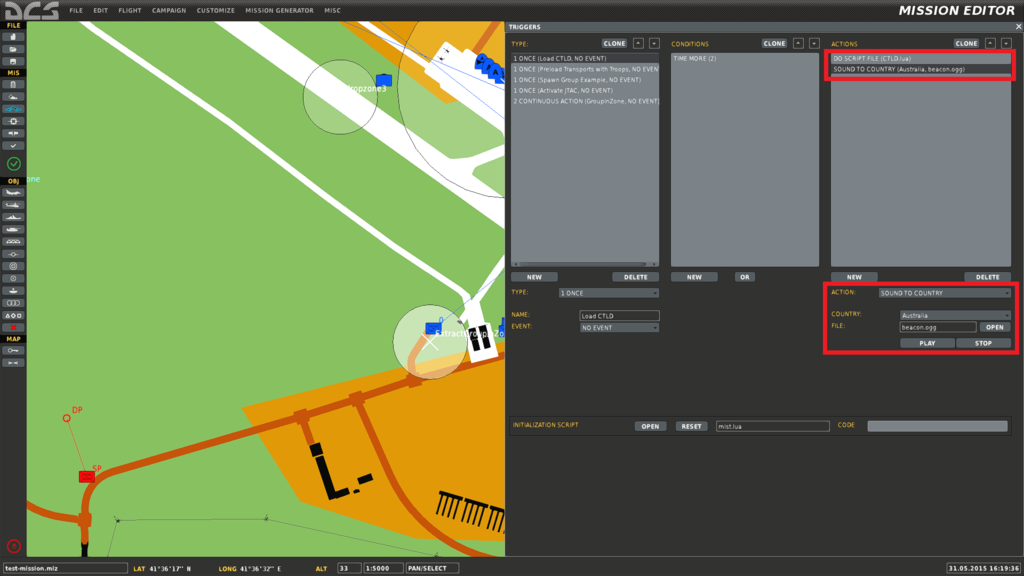
First make sure MIST is loaded, either as an Initialization Script for the mission or the first DO SCRIPT with a "TIME MORE" of 1. "TIME MORE" means run the actions after X seconds into the mission.
Load the CTLD a few seconds after MIST using a second trigger with a "TIME MORE" and a DO SCRIPT of CTLD.lua.
You will also need to load in both the beacon.ogg sound file and the beaconsilent.ogg for Radio beacon homing. This can be done by adding a two Sound To Country actions. Pick an unused country, like Australia so no one actually hears the audio when joining at the start of the mission. If you don't add the two Audio files, radio beacons will not work. Make sure not to rename the file as well.
An error will be shown if MIST isn't loaded first.
An example is shown below:
###Script Configuration The script has lots of configuration options that can be used to further customise the behaviour.
-- ************************************************************************
-- *********************  USER CONFIGURATION ******************************
-- ************************************************************************
ctld.disableAllSmoke = false -- if true, all smoke is diabled at pickup and drop off zones regardless of settings below. Leave false to respect settings below

ctld.enableCrates = true -- if false, Helis will not be able to spawn or unpack crates so will be normal CTTS

ctld.enableSmokeDrop = true -- if false, helis and c-130 will not be able to drop smoke

ctld.maxExtractDistance = 125 -- max distance from vehicle to troops to allow a group extraction
ctld.maximumDistanceLogistic = 200 -- max distance from vehicle to logistics to allow a loading or spawning operation
ctld.maximumSearchDistance = 4000 -- max distance for troops to search for enemy
ctld.maximumMoveDistance = 1000 -- max distance for troops to move from drop point if no enemy is nearby

ctld.numberOfTroops = 10 -- default number of troops to load on a transport heli or C-130

ctld.vehiclesForTransportRED = { "BRDM-2", "BTR_D" } -- vehicles to load onto Il-76 - Alternatives {"Strela-1 9P31","BMP-1"}
ctld.vehiclesForTransportBLUE = { "M1045 HMMWV TOW", "M1043 HMMWV Armament" } -- vehicles to load onto c130 - Alternatives {"M1128 Stryker MGS","M1097 Avenger"}

ctld.hawkLaunchers = 3 -- controls how many launchers to add to the hawk when its spawned.

ctld.spawnRPGWithCoalition = true --spawns a friendly RPG unit with Coalition forces
ctld.spawnStinger = false -- spawns a stinger / igla soldier with every group of 5 or more men.

ctld.enabledFOBBuilding = true -- if true, you can load a crate INTO a C-130 than when unpacked creates a Forward Operating Base (FOB) which is a new place to spawn (crates) and carry crates from
-- In future i'd like it to be a FARP but so far that seems impossible...
-- You can also enable troop Pickup at FOBS

ctld.cratesRequiredForFOB = 3 -- The amount of crates required to build a FOB. Once built, helis can spawn crates at this outpost to be carried and deployed in another area.
-- The crates can only be loaded and dropped by large aircraft, like the C-130 and listed in ctld.vehicleTransportEnabled

ctld.troopPickupAtFOB = true -- if true, troops can also be picked up at a created FOB

ctld.buildTimeFOB = 120 --time in seconds for the FOB to be built

ctld.radioSound = "beacon.ogg" -- the name of the sound file to use for the FOB radio beacons. If this isnt added to the mission BEACONS WONT WORK!
ctld.radioSoundFC3 = "beaconsilent.ogg" -- name of the second silent radio file, used so FC3 aircraft dont hear ALL the beacon noises... :)

ctld.deployedBeaconBattery = 20 -- the battery on deployed beacons will last for this number minutes before needing to be re-deployed

ctld.enabledRadioBeaconDrop = true -- if its set to false then beacons cannot be dropped by units
To change what units can be dropped from crates modify the spawnable crates section. An extra parameter, cratesRequired = NUMBER can be added so you need more than one crate to build a unit. This parameter cannot be used for the HAWK system as that is already broken into 3 crates. You can also specify the coalition side so RED and BLUE have different crates to drop. If the parameter is missing the crate will appear for both sides.
-- in lua means ignore this line :)
-- ************** SPAWNABLE CRATES ******************
-- Weights must be unique as we use the weight to change the cargo to the correct unit
-- when we unpack
--
ctld.spawnableCrates = {
    -- name of the sub menu on F10 for spawning crates
    ["Ground Forces"] = {
        --crates you can spawn
        -- weight in KG
        -- Desc is the description on the F10 MENU
        -- unit is the model name of the unit to spawn
        -- cratesRequired - if set requires that many crates of the same type within 100m of each other in order build the unit
        -- side is optional but 2 is BLUE and 1 is RED
        -- dont use that option with the HAWK Crates
        { weight = 1400, desc = "HMMWV - TOW", unit = "M1045 HMMWV TOW", side = 2 },
        { weight = 1200, desc = "HMMWV - MG", unit = "M1043 HMMWV Armament", side = 2 },

        { weight = 1700, desc = "BTR-D", unit = "BTR_D", side = 1 },
        { weight = 1900, desc = "BRDM-2", unit = "BRDM-2", side = 1 },

        { weight = 1100, desc = "HMMWV - JTAC", unit = "Hummer", side = 2, }, -- used as jtac and unarmed, not on the crate list if JTAC is disabled
        { weight = 1500, desc = "SKP-11 - JTAC", unit = "SKP-11", side = 1, }, -- used as jtac and unarmed, not on the crate list if JTAC is disabled

        { weight = 200, desc = "2B11 Mortar", unit = "2B11 mortar" },

        { weight = 500, desc = "SPH 2S19 Msta", unit = "SAU Msta", side=1, cratesRequired = 3 },
        { weight = 501, desc = "M-109", unit = "M-109", side=2, cratesRequired = 3 },
    },
    ["AA Crates"] = {
        { weight = 210, desc = "Stinger", unit = "Stinger manpad", side = 2 },
        { weight = 215, desc = "Igla", unit = "SA-18 Igla manpad", side = 1 },

        { weight = 1000, desc = "HAWK Launcher", unit = "Hawk ln" },
        { weight = 1010, desc = "HAWK Search Radar", unit = "Hawk sr" },
        { weight = 1020, desc = "HAWK Track Radar", unit = "Hawk tr" },
        --

        { weight = 505, desc =  "Strela-1 9P31", unit = "Strela-1 9P31", side =1, cratesRequired = 4 },
        { weight = 506, desc =  "M1097 Avenger", unit = "M1097 Avenger", side =2, cratesRequired = 4 },
    },
}
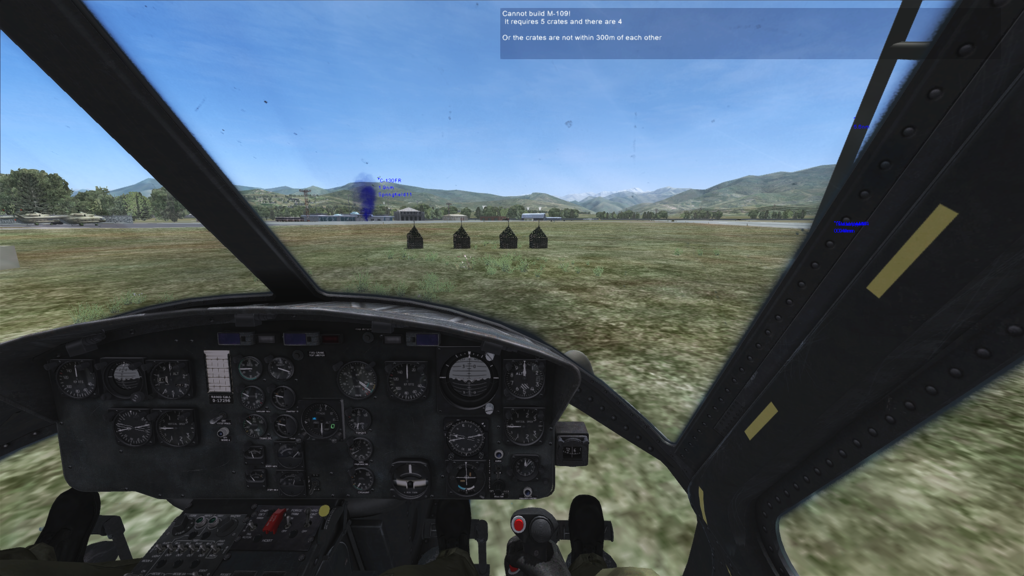
Example showing what happens if you dont have enough crates:
**Make sure that after making any changes to the script you remove and re-add the script to the mission. **
###Mission Editor Script Functions ####Preload Troops into Transport You can also preload troops into AI transports once the CTLD script has been loaded, instead of having the AI enter a pickup zone, using the code below where the parameters are:
- Pilot name of the unit
- number of troops / vehicles to load
- true means load with troops, false means load with vehicles
If you try to load vehicles into anything other than a unit listed in ctld.vehicleTransportEnabled, they won't be able to deploy them.
ctld.preLoadTransport("helicargo1", 10,true)
####Create Extractable Groups without Pickup Zone
You can also make existing mission editor groups extractable by adding their group name to the ctld.extractableGroups list
####Spawn Extractable Groups without Pickup Zone You can also spawn extractable infantry groups at a specified trigger zone using the code below.
The parameters are:
- group side (red or blue)
- number of troops to spawn
- the name of the trigger to spawn the extractable troops at
- the distance the troops should search for enemies on spawning in meters
ctld.spawnGroupAtTrigger("red", 10, "spawnTrigger", 1000)
or
ctld.spawnGroupAtTrigger("blue", 5, "spawnTrigger2", 2000)
####Create Radio Beacon at Zone
A radio beacon can be spawned at any zone by adding a Trigger Once with a Time More set to any time after the CTLD script has been loaded and a DO SCRIPT action of ctld.createRadioBeaconAtZone("beaconZone","red", 1440)
Where "beaconZone" is the name of a Trigger Zone added using the mission editor, "red" is the side to add the beacon for and 1440 the time in minutes for the beacon to broadcast for.
ctld.createRadioBeaconAtZone("beaconZoneBlue","blue", 20) will create a beacon at trigger zone named "beaconZoneBlue" for the Blue coalition that will last 20 minutes.
Spawned beacons will broadcast on HF/FM, UHF and VHF until their battery runs out and can be used by most aircraft for ADF. The frequencies used on each frequency will be random.
Again, beacons will not work if beacon.ogg and beaconsilent.ogg are not in the mission!
####Create Extract Zone An extact zone is a zone where troops (not vehicles) can be dropped by transports and used to trigger another action based on the number of troops dropped. The radius of the zone sets how big the extract zone will be.
When troops are dropped, the troops disappear and the number of troops dropped added to the flag number configured by the function. This means you can make a trigger such that 10 troops have to be rescued and dropped at the extract zone, and when this happens you can trigger another action.
An Extraction zone can be created by adding a Trigger Once with a Time More set to any time after the CTLD script has been loaded and a DO SCRIPT action of ctld.createExtractZone("extractzone1", 2, -1)
Where "extractzone1" is the name of a Trigger Zone added using the mission editor, 2 is the flag where we want the total number of troops dropped in a zone added and -1 the smoke colour.
The settings for smoke are: Green = 0 , Red = 1, White = 2, Orange = 3, Blue = 4, NO SMOKE = -1
####Create Crate Drop Zone A crate drop zone is a zone where the number of crates in a zone in counted every 5 seconds and the current amount stored in a flag specified by the script.
The flag number can be used to trigger other actions added using the mission editor, i.e only activate vehicles once a certain number of crates have been dropped in a zone. The radius of the zone in the mission editor sets how big the crate drop zone will be.
**The script doesnt differentiate between crates, any crate spawned by the CTLD script can be dropped there and it will count as 1 but if a crate is unpacked in a zone it will no longer count! **
Crates added by the Mission Editor cannot be used, only crates spawned by the Script will work!
A crate drop zone can be added to any zone by adding a Trigger Once with a Time More set to any time after the CTLD script has been loaded and a DO SCRIPT action of ctld.cratesInZone("crateZone",1)
Where "crateZone" is the name of a Trigger Zone added using the mission editor, and 1 is the number of the flag where the current number of crates in the zone will be stored.
####JTAC Automatic Targeting and Laser This script has been merged with https://github.com/ciribob/DCS-JTACAutoLaze . JTACs can either be deployed by Helicopters and configured with the options in the script or pre added to the mission. By default each side can drop 5 JTACs.
The JTAC Script configuration is shown below and can easily be disabled using the ctld.JTAC_dropEnabled option.
-- ***************** JTAC CONFIGURATION *****************
ctld.JTAC_LIMIT_RED = 10 -- max number of JTAC Crates for the RED Side
ctld.JTAC_LIMIT_BLUE = 10 -- max number of JTAC Crates for the BLUE Side

ctld.JTAC_dropEnabled = true -- allow JTAC Crate spawn from F10 menu

ctld.JTAC_maxDistance = 4000 -- How far a JTAC can "see" in meters (with Line of Sight)

ctld.JTAC_smokeOn_RED = true -- enables marking of target with smoke for RED forces
ctld.JTAC_smokeOn_BLUE = true -- enables marking of target with smoke for BLUE forces

ctld.JTAC_smokeColour_RED = 4 -- RED side smoke colour -- Green = 0 , Red = 1, White = 2, Orange = 3, Blue = 4
ctld.JTAC_smokeColour_BLUE = 1 -- BLUE side smoke colour -- Green = 0 , Red = 1, White = 2, Orange = 3, Blue = 4

ctld.JTAC_jtacStatusF10 = false -- enables F10 JTAC Status menu

ctld.JTAC_location = false -- shows location of target in JTAC message

ctld.JTAC_lock =  "all" -- "vehicle" OR "troop" OR "all" forces JTAC to only lock vehicles or troops or all ground units
To make a unit deployed from a crate into a JTAC unit, add the type to the ctld.jtacUnitTypes list.
The script allows a JTAC to mark and hold an IR and Laser point on a target allowing TGP's to lock onto the lase and ease of target location using NV Goggles.
The JTAC will automatically switch targets when a target is destroyed or goes out of Line of Sight.
The JTACs can be configured globally to target only vehicles or troops or all ground targets.
***NOTE: LOS doesn't include buildings or tree's... Sorry! ***
The script can also be useful in daylight by enabling the JTAC to mark enemy positions with Smoke. The JTAC will only move the smoke to the target every 5 minutes (to stop a huge trail of smoke markers) unless the target is destroyed, in which case the new target will be marked straight away with smoke. There is also an F10 menu option for units allowing the JTAC(s) to report their current status but if a JTAC is down it won't report in.
To add JTACS to the mission using the editor place a JTAC unit on the map putting each JTAC in it's own group containing only itself and no other units. Name the group something easy to remember e.g. JTAC1 and make sure the JTAC units have a unique name which must not be the same as the group name. The editor should do this for you but be careful if you copy and paste.
Run the code below as a DO SCRIPT at the start of the mission, or after a delay if you prefer to activate a mission JTAC.
JTAC units deployed by unpacking a crate will automatically activate and begin searching for targets immediately.
ctld.JTACAutoLase('JTAC1', 1688)
Where JTAC1 is the Group name of the JTAC Group with one and only one JTAC unit and the 1688 is the Laser code.
You can also override global settings set in the script like so:
ctld.JTACAutoLase('JTAC1', 1688, false,"all")
This means no smoke marks for this JTAC and it will target all ground troops
ctld.JTACAutoLase('JTAC1', 1688, true,"vehicle")
This smoke marks for this JTAC and it will target ONLY ground vehicles
ctld.JTACAutoLase('JTAC1', 1688, true,"troop")
This means smoke marks are enabled for this JTAC and it will target ONLY ground troops
ctld.JTACAutoLase('JTAC1', 1688, true,"troop",1)
This means smoke marks are enabled for this JTAC and it will target ONLY ground troops AND smoke colour will be Red
ctld.JTACAutoLase('JTAC1', 1688, true,"troop",0)
This means smoke marks are enabled for this JTAC and it will target ONLY ground troops AND smoke colour will be Green
ctld.JTACAutoLase('JTAC1', 1688, true,"all", 4)
This means no smoke marks for this JTAC and it will target all ground troops AND mark with Blue smoke
Smoke colours are: Green = 0 , Red = 1, White = 2, Orange = 3, Blue = 4
The script doesn't care if the unit isn't activated when run, as it'll automatically activate when the JTAC is activated in the mission but there can be a delay of up to 30 seconds after activation for the JTAC to start searching for targets.
###Pickup and Dropoff Zones Setup
Pickup zones are used by transport aircraft and helicopters to load troops and vehicles. A transport unit must be inside of the radius of the trigger in order to load troops and vehicles.
The pickup zone needs to be named the same as one of the pickup zones in the ctld.pickupZones list or the list can be edited to match the name in the mission editor.
ctld.pickupZones = {
    { "pickzone1", "blue" },
    { "pickzone2", "blue" },
    { "pickzone3", "none" },
    { "pickzone4", "none" },
    { "pickzone5", "none" },
    { "pickzone6", "none" },
    { "pickzone7", "none" },
    { "pickzone8", "none" },
    { "pickzone9", "none" },
    { "pickzone10", "none" },
}
AI transport units will automatically load troops and vehicles when entering a pickup zone as long as they stay in the zone for a few seconds. They do not need to stop to load troops but Aircraft will need to be on the ground in order to load troops.
The number of troops that can be loaded from a pickup zone can be configured by changing ctld.numberOfTroops which by default is 10. You can also enable troop groups to have RPGs and Stingers / Iglas by ctld.spawnRPGWithCoalition and ctld.spawnStinger.
If ctld.numberOfTroops is 6 or more than the soldier group will consist of:
- 2 MG Soldiers with M249s or Paratroopers with AKS-74
- 2 RPG Soldiers (only on the RED side if
ctld.spawnRPGWithCoalitionisfalse - 1 Igla / Stinger
- The rest will be standard soldiers
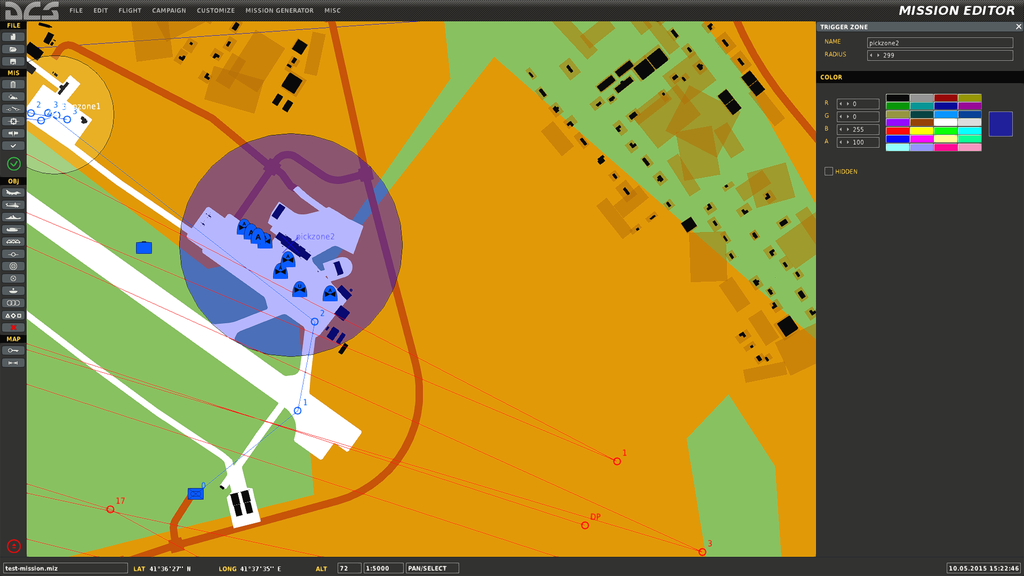
Example:
Dropoff zones are used by AI units to automatically unload any loaded troops or vehicles. This will occurr as long as the AI unit has some units onboard and stays in the radius of the zone for a few seconds and the zone is named in the ctld.dropoffZones list. Again units do not need to stop but aircraft need to be on the ground in order to unload the troops.
ctld.dropOffZones = {
    { "dropzone1", "red" },
    { "dropzone2", "blue" },
    { "dropzone3", "none" },
    { "dropzone4", "none" },
    { "dropzone5", "none" },
    { "dropzone6", "none" },
    { "dropzone7", "none" },
    { "dropzone8", "none" },
    { "dropzone9", "none" },
    { "dropzone10", "none" },
}
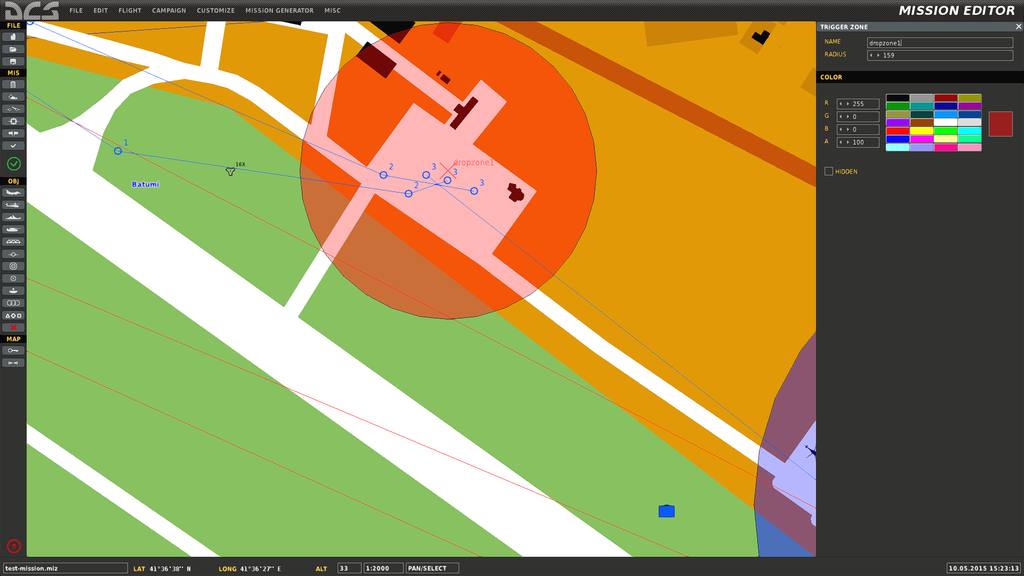
Smoke can be enabled or disabled individually for pickup or dropoff zones by editing the second column in the list.
Available colours are:
"green""red""white""orange""blue""none"
Smoke can be disabled for all zones regardless of the settings above using the option ctld.disableAllSmoke = true in the User Configuration part of the script.
###Transport Unit Setup
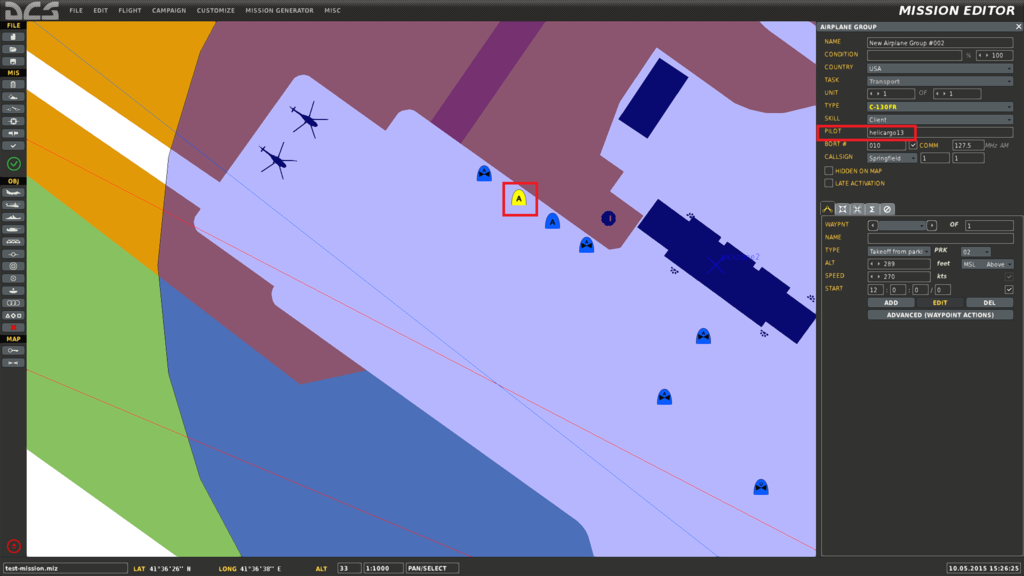
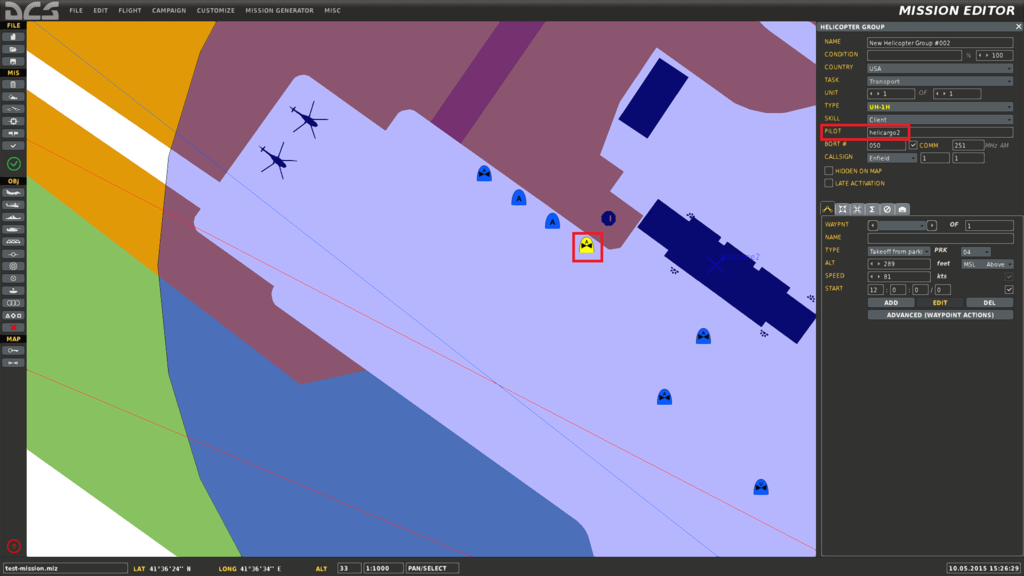
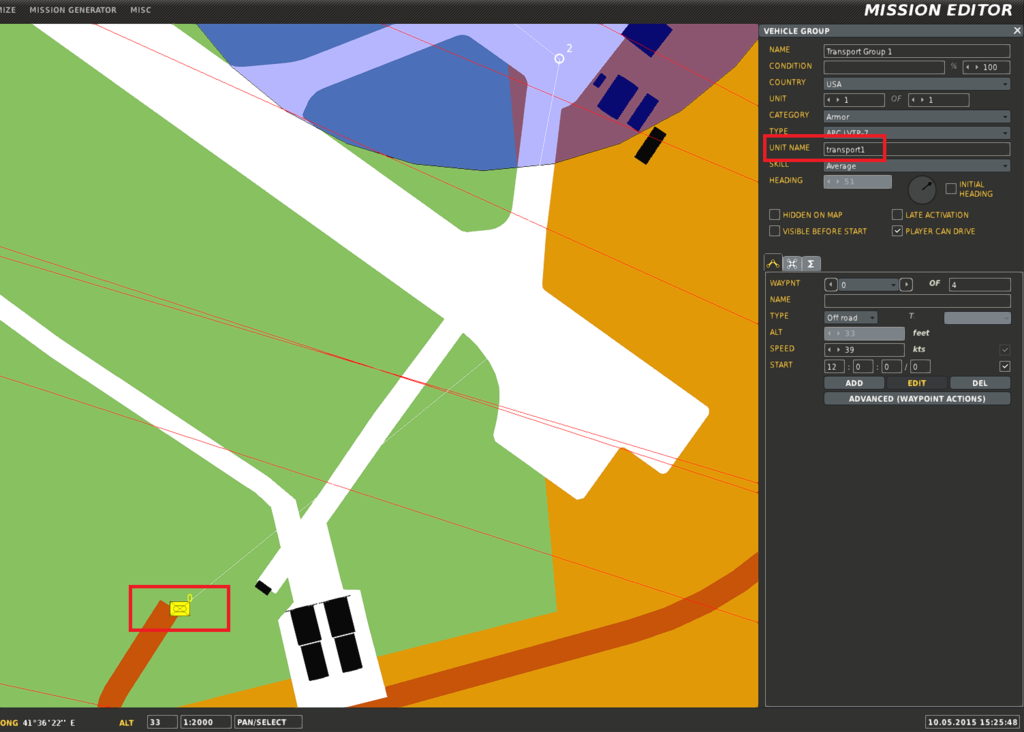
Any unit that you want to be able to transport troops needs to have the "Pilot Name" in the ctld.transportPilotNames list. Player controlled transport units should be in a group of their own and be the only unit in the group, otherwise other players may have radio commands they shouldn't. The group name isn't important and can be set to whatever you like. A snippet of the list is shown below.
If the unit is player controlled, troops have to be manually loaded when in a pickup zone, AI units will auto load troops in a pickup zone.
ctld.transportPilotNames = {
    "helicargo1",
    "helicargo2",
    "helicargo3",
    "helicargo4",
    "helicargo5",
    "helicargo6",
    "helicargo7",
    "helicargo8",
    "helicargo9",
    "helicargo10",
    }
Example for C-130:
Example for Huey:
Example for AI APC:
###Logistic Setup
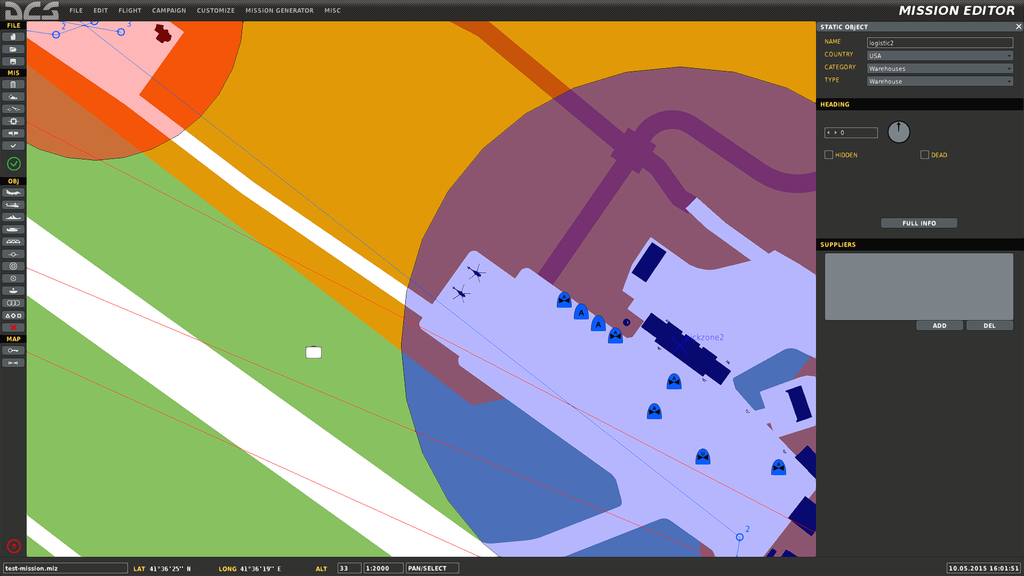
Logistic crates can also be spawned by Player-controlled Transport Helicopters, as long as they are near a friendly logistic unit listed in ctld.logisticUnits. The distance that the heli's can spawn crates at can be configured at the top of the script. Any static object can be used for Logistics.
ctld.logisticUnits = {
    "logistic1",
    "logistic2",
    "logistic3",
    "logistic4",
    "logistic5",
    "logistic6",
    "logistic7",
    "logistic8",
    "logistic9",
    "logistic10",
}
Example:
#In Game ##Troop Loading and Unloading
Troops can be loaded and unloaded using the F10 Menu. Troops can only be loaded in a pickup zone or from a FOB (if enabled) but can be dropped anywhere you like. Troops dropped by transports can also be extracted by any transport unit using the radio menu, as long as you are close enough.
AI transports will display a message when they Auto load and deploy troops in the field. AI units won't pickup already deployed troops so as not to interfere with players.
The C130 / IL-76 gets an extra radio option for loading and deploying vehicles. By default the C-130 can pickup and deploy a HMMWV TOW and HMMWV MG. This can be changed by editing ctld.vehiclesForTransportBLUE for BLUE coalition forces or ctld.vehiclesForTransportRED for RED coalition forces.
The C-130 / IL-76 can also load and unload FOB crates from a Logistics area, see FOB Construction for more details.
##Cargo Spawning and Sling Loading
Cargo can be spawned by transport helicopters if they are close enough to a friendly logistics unit using the F10 menu. Everything except the HAWK AA Missile system requires only one crate to build. Crates are always spawned off the nose of the unit that requested them. Sling cargo weight differs drastically depending on what you are sling loading. The Huey will need to have 20% fuel and no armaments in order to be able to lift a HMMWV TOW crate! The Mi-8 has a higher max lifting weight than a Huey.
Once spawning the crate, to slingload the F6 menu needs to be used to select a cargo of the correct weight. If you've selected the right cargo RED smoke will appear and you can now sling load by hovering over the crate at a height of 15-30 feet or so.
- Huey rough max sling weight = 4000 lb / 1814.37 kg
- Mi-8 rough max sling weight = 6614 lb / 3000 kg
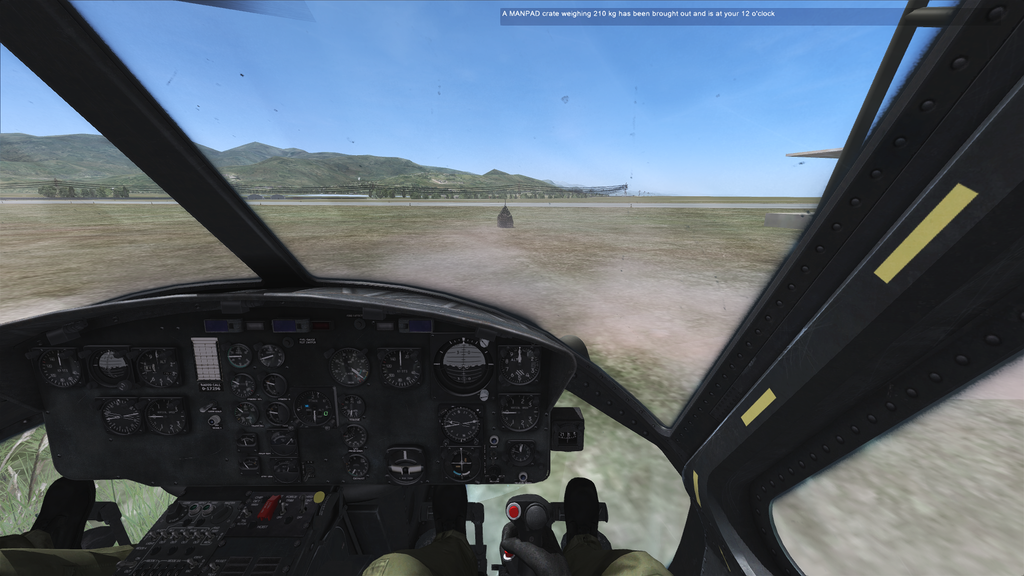
After selecting the right crate:
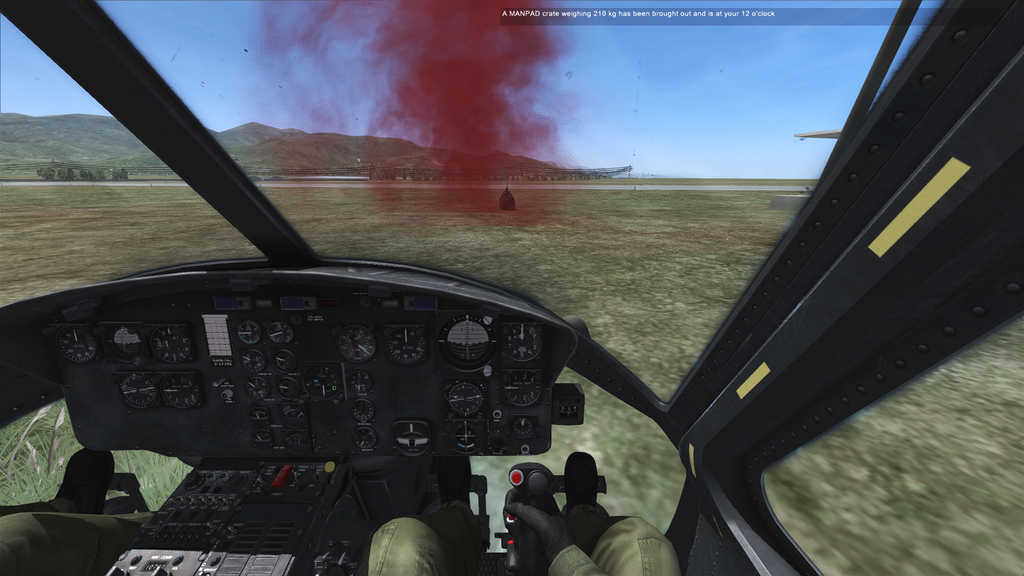
You can also list nearby crates that have yet to be unpacked using the F10 CTLD Commands Menu and also unpack nearby crates using the same menu.
Crate damage in the script is currently not implemented so as long as the crate isn't destroyed, you should always be able to unpack.
##Crate Unpacking Once you have sling loaded and successfully dropped your crate, you can land and list nearby crates that have yet to be unpacked using the F10 Crate Commands Menu, as well as unpack nearby crates using the same menu. Crates cannot be unpacked near a logistics unit.
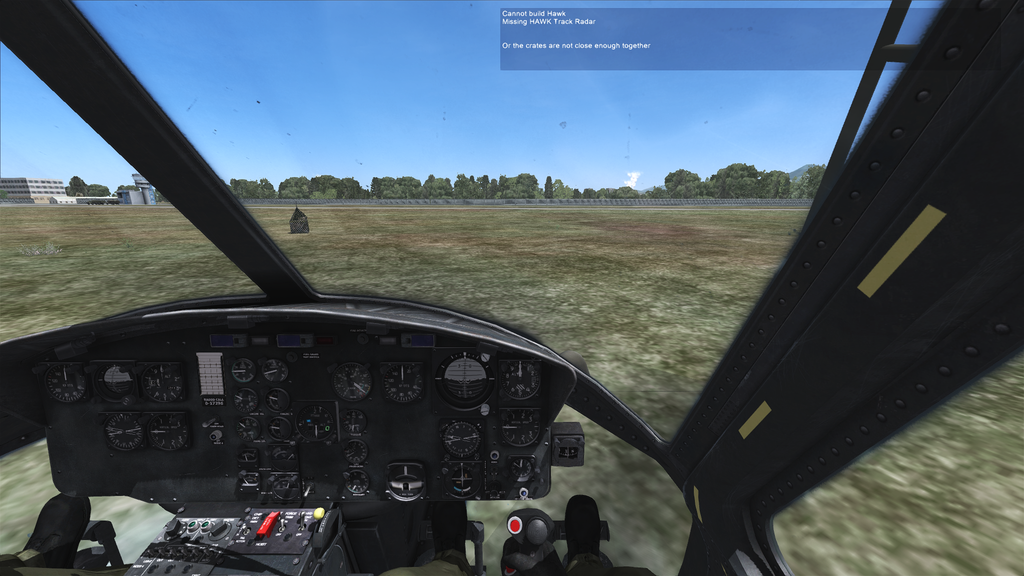
To build a HAWK AA system you will need to slingload all 3 parts - Launcher, Track Radar and Search Radar - and drop the crates within 100m of each other. If you try to build the system without all the parts, a message will list which parts are missing. The HAWK system by default will spawn with 3 launchers as it usually fires off 3 missiles at one target at a time. If you want to change the amount of launchers it has, edit the ctld.hawkLaunchers option in the user configuration at the top of the CTLD.lua file.
Parts Missing:
Example of Deployed HAWK System:
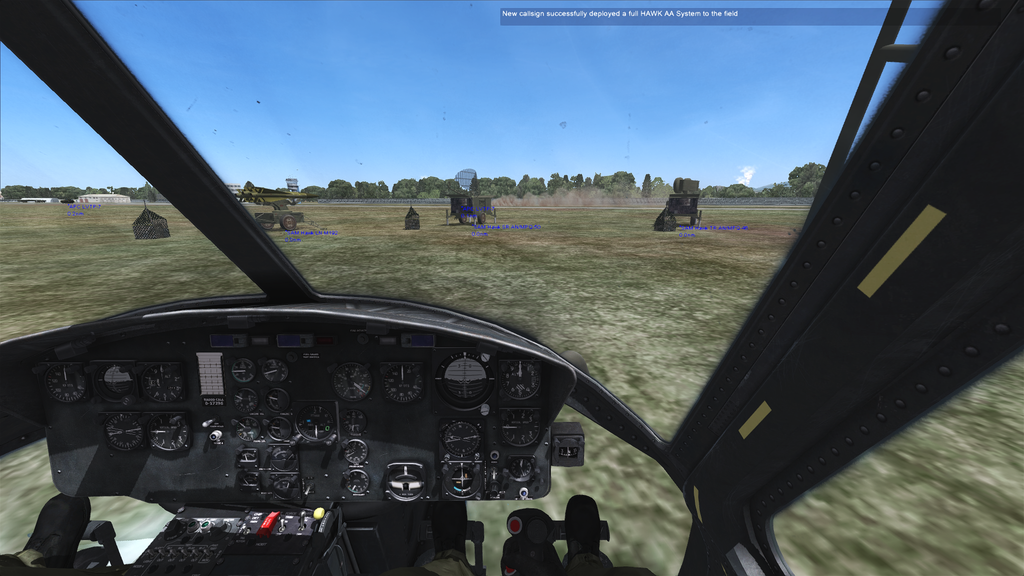
You can also rearm a fully deployed HAWK system by dropping another Launcher crate next to the completed system and unpacking it.
Rearming:
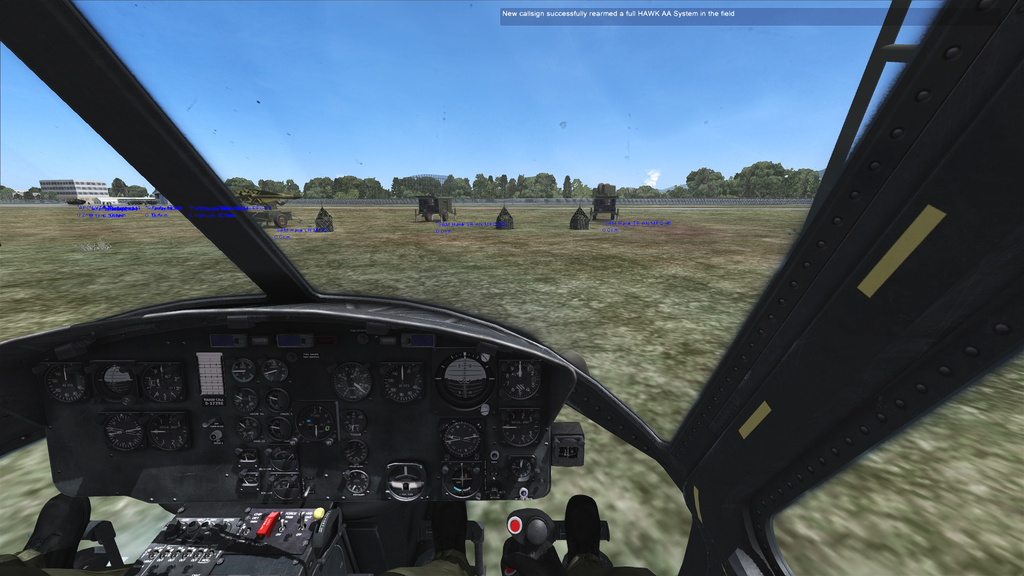
**Note: Once unpacked a crate will not disappear from the field or the F6 Menu, but will disappear from the F10 Nearby Crates list. There is currently no way to remove crates due to a DCS Bug AFAIK. This can make picking the right crate tricky, but by using the F10 List crates option, you can keep readjusting your position until you are close to the crate that you want and then it's trial and error, using the F6 menu to pick the right crate for sling loading. **
##Forward Operating Base (FOB) Construction FOBs can be built by loading special FOB crates from a Logistics unit into a C-130 or other large aircraft configured in the script. To load the crate use the F10 - Troop Commands Menu. The idea behind FOBs is to make player vs player missions even more dynamic as these can be deployed in most locations. Once destroyed the FOB can no longer be used.
The amount of FOB crates required and the time to build can be configured at the top of the CTLD script. By default the FOB required 3 crates to build.
FOB crates cannot be moved by sling-load but can be built using the F10 - CTLD Commands menu by ether aircraft or helicopters. They can be repeatedly dropped and picked up by transport aircraft if they need to be moved. The FOB will build between all the dropped crates.
Once built, units can load troops and spawn crates from the FOB. Troop loading from the FOB can be configured at the top fo the script. AI units can also auto load troops from the FOB.
Crate Dropped:
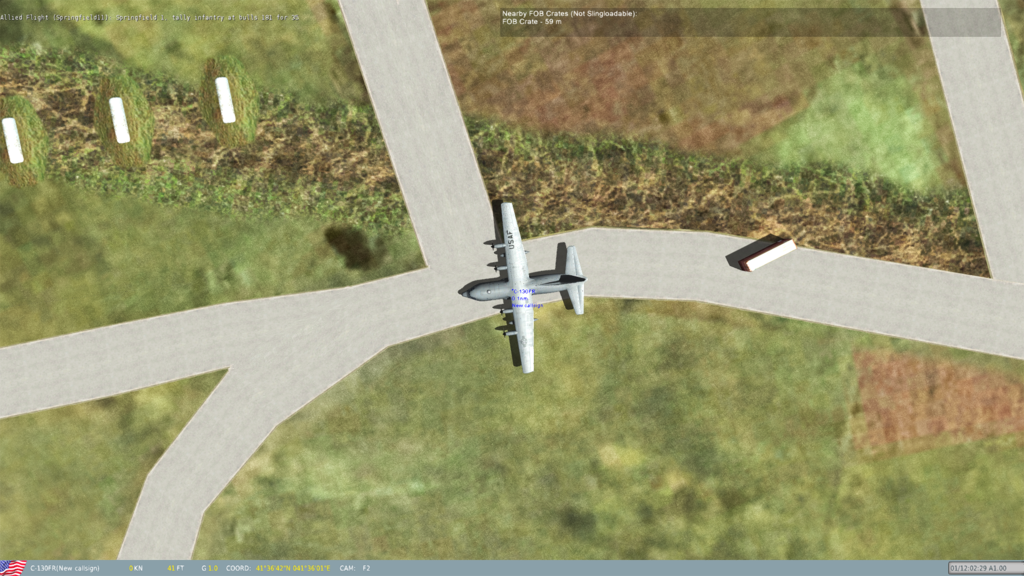
Building:
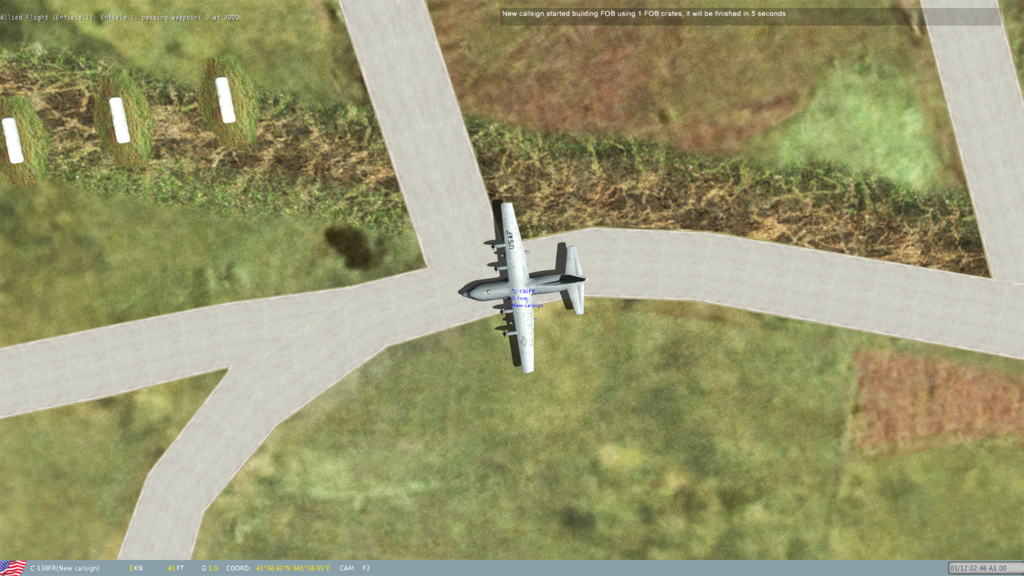
Built:
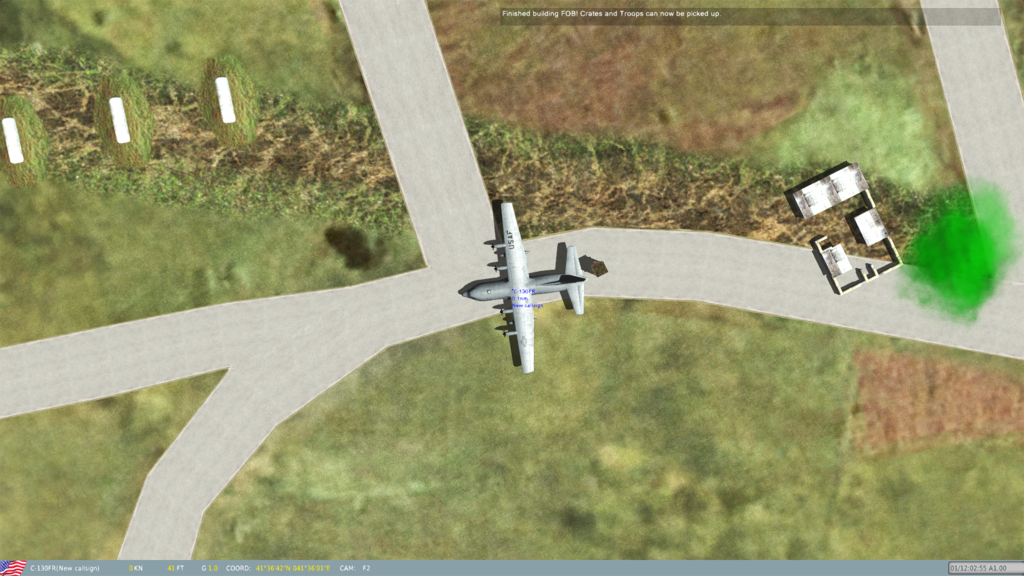
Once built, FOBs can be located using the F10 CTLD Commands menu -> List FOBS.
You will get a position as well as a UHF / VHF frequency that the Huey / Mi-8 (VHF) and Ka-50 / A10-C (UHF) can use to find the FOB. How to configure the radios is shown in the section below
##Radio Beacon Deployment Radio beacons can be dropped by any transport unit and there is no enforced limit on the number of beacons that can be dropped. There is however a finite limit of available frequencies so don't drop too many or you won't be able to distinguise the beacons from one another.
By default a beacon will disappear after 15 minutes, when it's battery runs out. FOB beacons will never run out power. You can give the beacon more time by editing the ctld.deployedBeaconBattery setting.
To deploy a beacon you must be on the ground and then use the F10 radio menu. The beacons are under the Radio Beacons section in CTLD. Once a beacon has been dropped, the frequencies can also be listed using the CTLD - > Radio Beacons -> List Radio Beacons command.
The guides below are not necessarily the best or only way to set up the ADF in each aircraft but it works :)
###A10-C UHF ADF Radio Setup To configure ADF on the UHF Radio you must
- Put the UHF Radio in ADF Mode using the mode select knob (rightmost setting)
- Enter the MHz frequency using the clickable knobs below the digital display
- That's it!
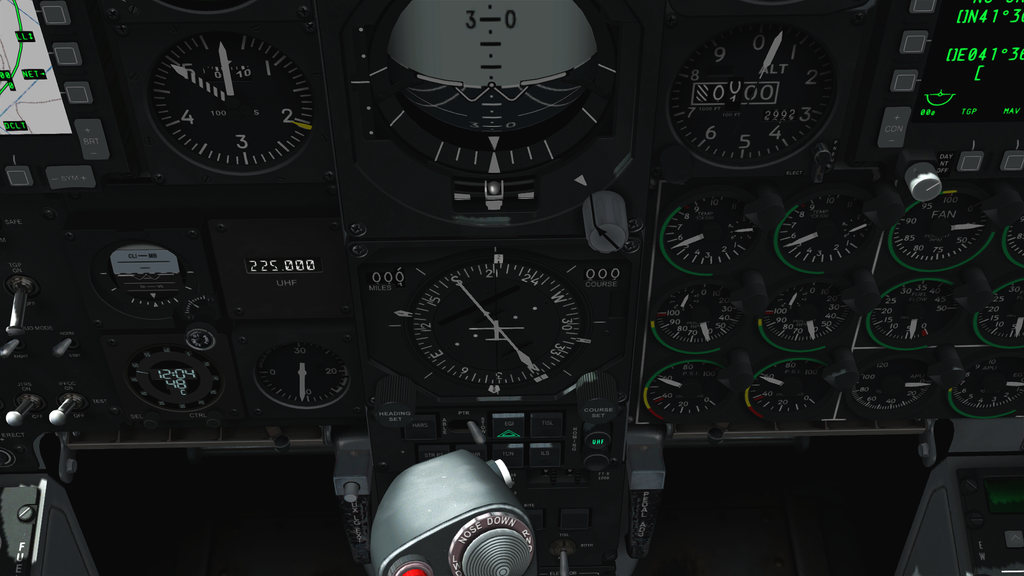
Once you've got the right frequency, you should see an arrow on the compass pointing in the right direction as well as the UHF light lit up under the Homing section below the compass but it may take up to a minute to pick up the signal not work while on the ground. You will not hear any sound.
Make sure the right knob is set to MNL or your frequency setting will be ignored.
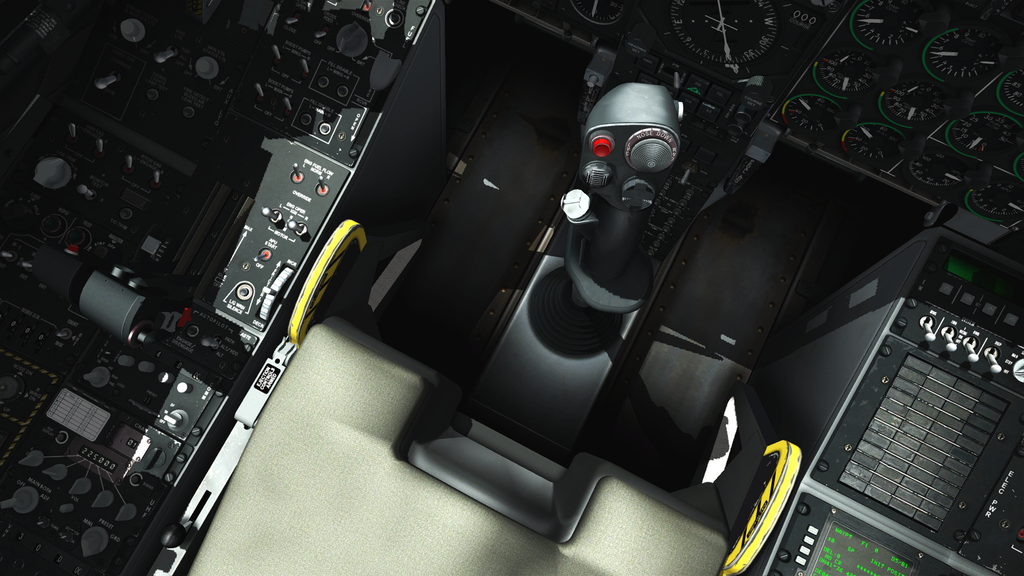
UHF Radio Configured: - Bottom left of Picture:
Pointer towards Radio Signal at 9 o'clock:
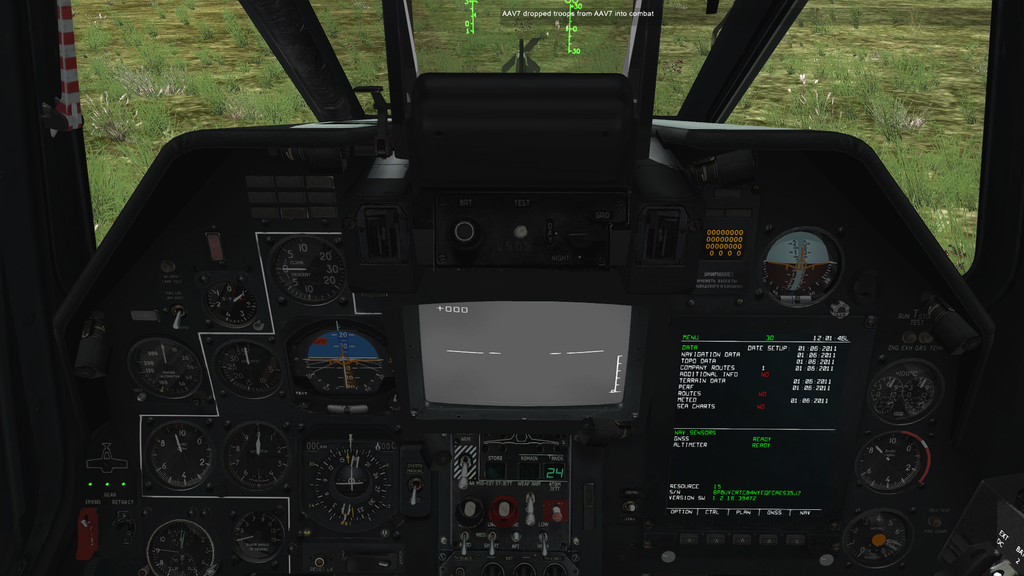
###KA-50 UHF ADF Radio Setup To configure ADF on the UHF Radio you must
- Put the UHF Radio in ADF Mode using the single ADF switch on the second row of switches on the Radio
- Enter the MHz frequency using the clickable orange wheels below the display
- That's it!
Once you've got the right frequency, you should see a gold arrow on the compass pointing in the right direction. It may take up to a minute to pick up the signal and not work while on the ground. You will not hear any sound!
Radio configured to the correct frequency for a beacon:
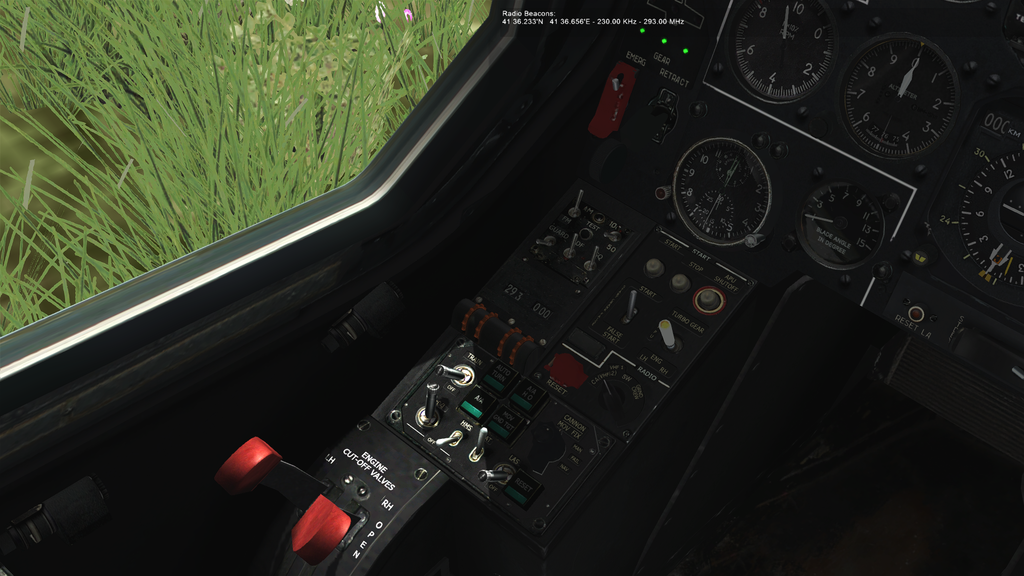
Gold pointer pointing to beacon on the compass:
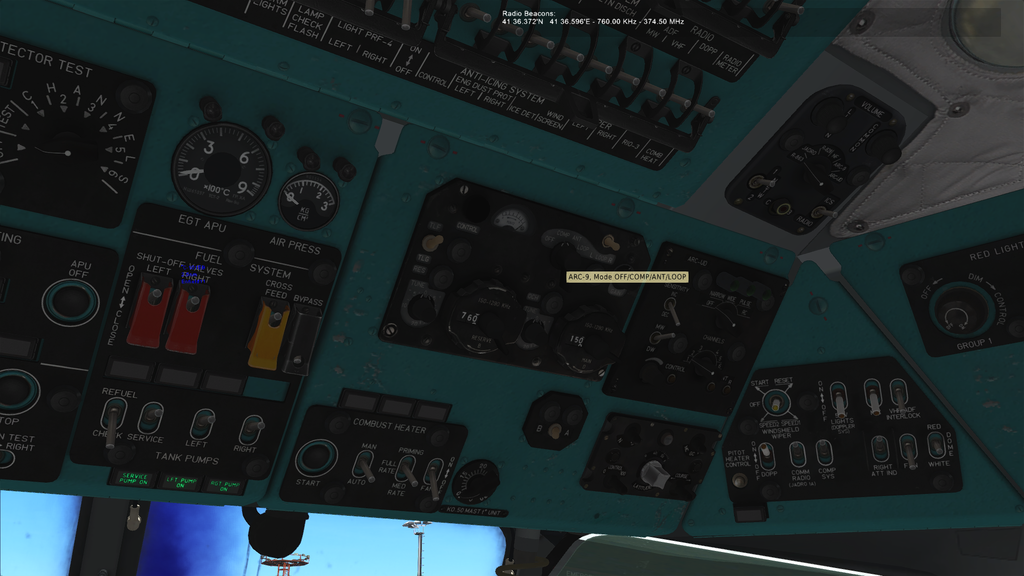
###Mi-8 ARC-9 VHF Radio Setup To configure ADF on the VHF Radio you must
- Switch to the engineer or co-pilot seat
- Put the VHF Radio in ADF Mode using the switch at the top of the radio to the COMP setting by clicking once.
- Enter the KHz frequency using the clickable switch and wheel on the left Reserve B radio
- Tune +/- 5 KHz using the bottom left tune knob on the ARC-9
- Switch to the pilot seat
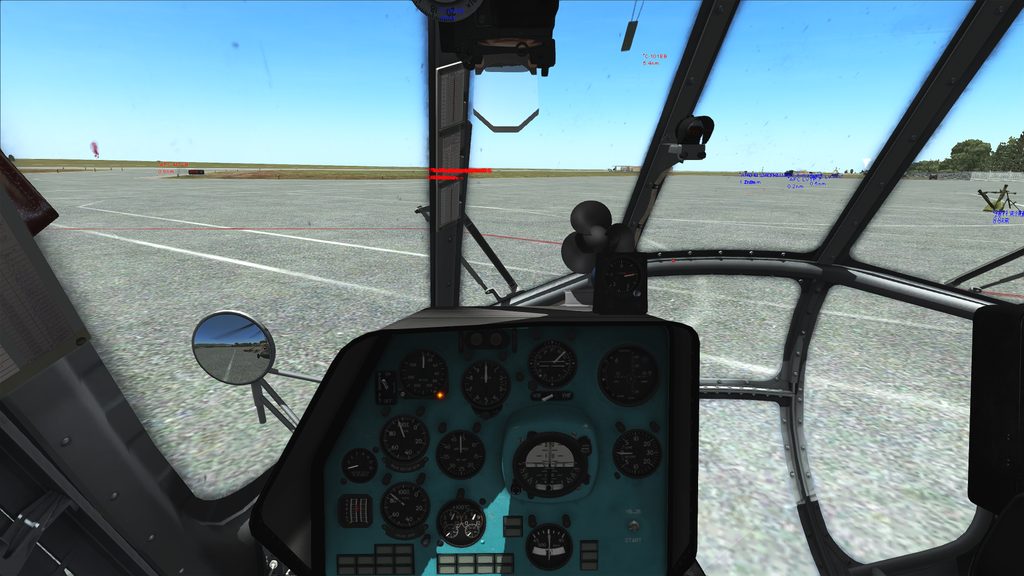
Once you've got the right frequency, you should see a white arrow on the compass pointing in the right direction. It may take up to a minute to pick up the signal and not work while on the ground. You may hear morse code when on the right frequency and occasionally receive text the radio which will be displayed at the top of the screen. You can also use the power meter on the radio to work out if you're on the right frequency.
Radio configured to the correct frequency for a beacon:
White pointer pointing to beacon on the compass:
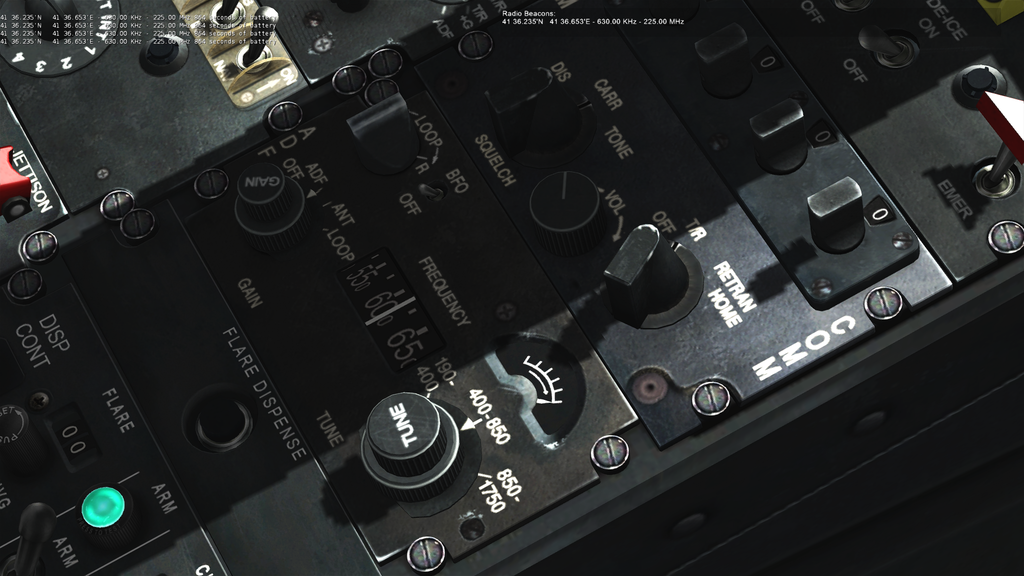
###UH-1 ADF VHF Radio Setup To configure the VHF ADF:
- Switch to the engineer or co-pilot seat
- Put the VHF Radio in ADF Mode using the switch at the top of the radio to the COMP setting by clicking once.
- Enter the KHz frequency using the clickable switch and wheel on the left Reserve B radio
- Tune +/- 5 KHz using the bottom left tune knob on the ARC-9
- Switch to the pilot seat
Once you've got the right frequency, you should see a white arrow on the compass pointing in the right direction. It may take up to a minute to pick up the signal and not work while on the ground. You may hear morse code when on the right frequency and occasionally receive text the radio which will be displayed at the top of the screen. You can also use the power meter on the radio to work out if you're on the right frequency.
The Huey ADF can be a dodgy and occasionaly points the wrong direction but it should eventually settle on the correct direction.
Radio configured to the correct frequency for a beacon:
White pointer pointing to beacon on the compass: