
4.8 KiB
Creating Infusions
What are Infusions?
Infusions are extra pieces of code formed in tiles. Each infusion needs at least 3 files, A small_tile.php, large_tile.php, and a handler.php file. The small_tile.php file could contain a log output, a refresh function, and/or a small description on the Infusion. The large_tile.php should contain the major functions of the Infusion. The handler.php file should only be edited when you update your infusion, changing the infusion version.
How to make an Infusion?
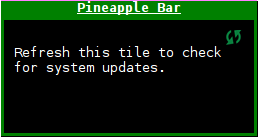
Creating infusions is easy, and it is now possible to do it from the Pineapple Bar. To create an infusion, simply open the large tile for the Pineapple bar.
Now, click on the create tab and enter the infusions name, version, tile, and toggle whether you want it to be up-datable (Refreshes the tile every 5 seconds), and whether you want it to be installed to the SD Card.
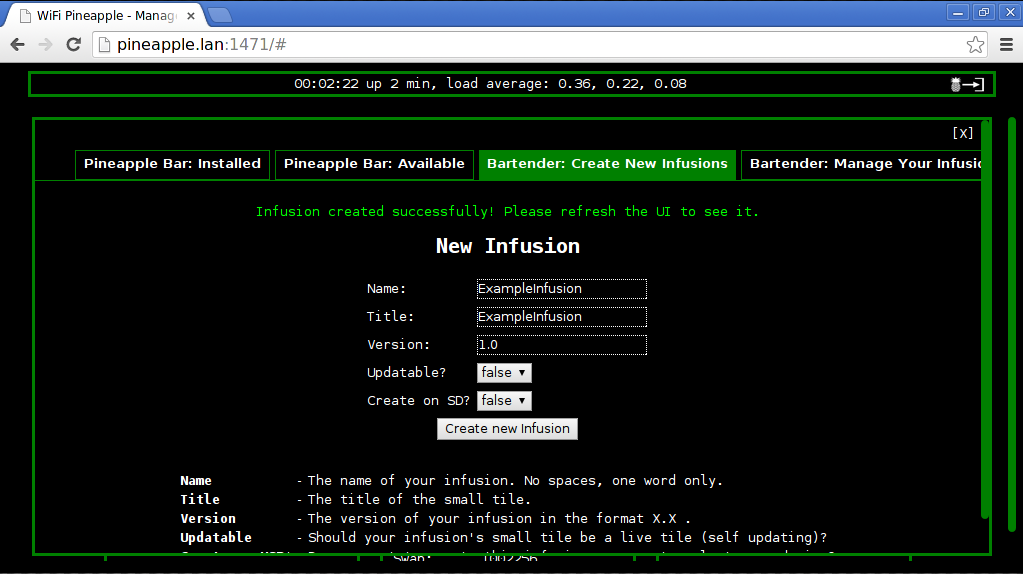
Refresh your pineapples Web UI and find your new tile, both the small and large tiles will be empty. SCP your new code from your Pineapple to your computer. Now you can edit the code and SCP it back over to test it out. You can also whip up a very quick infusion for a specific need with the built in editor which also found in the bartender infusion.
What do these files do?
Four files are created by the bartender infusion, named small_tile.php, large_tile.php, functions.php and finally handler.php.
The small_tile.php is the tile you click on main page of the WebUI and can contain HTML/PHP code. This is usually used for logs or descriptions of the infusion.
The large_tile.php is the large tile you get from clicking on the small tile. This tile should be used to host the main features of the infusion. Please see the AJAX section below for more information on using forms.
The functions.php file is used in conjunction with the AJAX method for forms. A common use is having PHP's 'isset' to check if the form has sent a POST method and then execute the PHP code. The example at the bottom of the page shows how you can achieve this.
The handler.php file is only used by the system. It specifies the infusion name, title and version. This should only be edited for updating the version variable.
AJAX
The Pineapple's large_tile.php uses a Javascript popup type method. Using regular HTML forms would cause this to break, so we use AJAX instead. This prevents the browser from going to a new page. More information can be found in the example section below.
Example
In this example, we will make a simple infusion that contains small_tile.php code, large_tile.php code, functions.php code and demonstrates the popup() and notify() features of the API.
Firstly, create a new infusion called 'ExampleInfusion' as above. In this example, I have already edited the files on my laptop before SCPing them back to the Pineapple. Remember that the real way to learn from an example is to type it out, not just copy and paste it.
Open the files in your favourite editor, and edit the small_tile.php file. In the small tile, we will create a Refresh function with Javascript and check to see whether a program is running on the pineapple, while notifying you that you have used the refresh function.
This is how we do it :
<html>
<head>
<script type="text/javascript">
function refreshSmall();
{
	refreshSmallTile(ExampleInfusion);
	notify('You used the Refresh button!');
}
</script>
</head>

<?php

exec("pgrep dnsspoof", $dnsspoofrunning);
if(empty($dnsspoofrunning))
	{
		echo "DNSSpoof is not Running.";
	}
else { echo('DNSSpoof is Running'); }

?>

<a href="#" onClick="refreshSmall();">[Refresh]</a>

</html>
This code makes a refresh button that will refresh the small tile named ExampleInfusion, as well as telling you whether 'DNSSpoof' is running or not. For the large tile, we will add a textbox and a submit button to demonstrate the popup() function and the AJAX forms.
In your large_tile.php, add this code :
<form action="/components/infusions/ExampleInfusion/functions.php" method="POST" onSubmit="$(this).AJAXifyForm(callback); return false;">
  <input type="text" name="text" placeholder="Enter some Text" />
  <input type="submit" name="submit" value="Submit">
</form>

<script type="text/javascript">
function callback(data){
  popup(data);
}

</script>
and in your functions.php, add this :
<?php

if(isset($_POST['submit'])){
  echo "You selected: ".$_POST['text'];
}

?>
The above pieces of code will display a textbox and a submit button inside of an AJAXified form. Then it will post to the functions.php and that file will look for the submit button name. It will then output the input of the textbox you made before. Building on this, it should be clear how to implement a wide variety of functions into your Infusion.