
6.5 KiB
Internet Connection Sharing
Introduction
Often, one of the first steps in setting up your WiFi Pineapple is connecting it to the internet. There are several ways of achieving this, and one of them is Internet Connection Sharing, or ICS for short. ICS is achieved by connecting your WiFi Pineapple to a computer that already has internet access, typically through a WiFi connection or Mobile Broadband. For a computer running Linux, Windows or Mac OS X, its a simple case of using an ethernet cable to connect the two. Its also possible to perform ICS with certain Android phones, in which case a USB cable is used.
By default, the WiFi Pineapple has an IP address of 172.16.42.1 and will assign clients with an IP address in the range 172.16.42.100-150 through its onboard DHCP server. The default gateway of the Wifi Pineapple is 172.16.42.42. In other words, the Pineapple will actively wait for an internet connection from a host with this IP address. The way in which an internet connection is supplied in this way varies on different Operating Systems.
Linux ICS
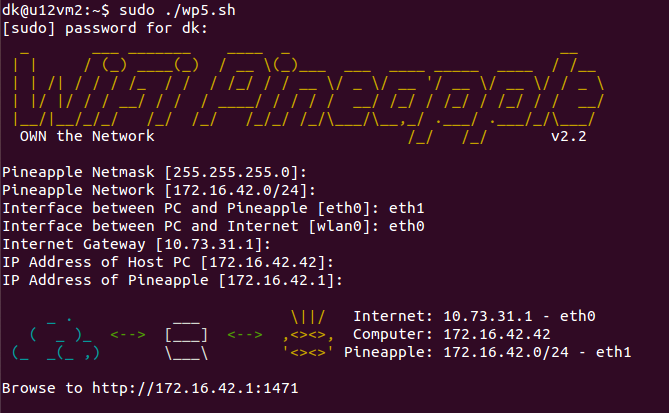
A simple tethering script is available for Linux hosts which will automatically setup the correct IP address and forwarding.
- Power on the WiFi Pineapple.
- Connect an Ethernet cable directly between the LAN port on the computer and the LAN port on the WiFi Pineapple.
- On the computer, download the wp5.sh script from wifipineapple.com here.
- Make the script executable with
chmod +x wp5.shand run the script as root (e.g.sudo ./wp5.sh). - Follow the on screen prompts, as illustrated below.
Windows ICS
While there is currently no quick-connect script for Windows, it is still a fairly simple and straightforward setup. The Windows PC will have two network interfaces: one connected to the Pineapple (a wired connection via ethernet) and one connected to the internet (either via WiFi or Mobile Broadband).
We begin by powering on the WiFi Pineapple and directly connecting an Ethernet cable between the WiFi Pineapple and PC. Open Network Connections on the PC and view the properties of the Internet-facing adapter.
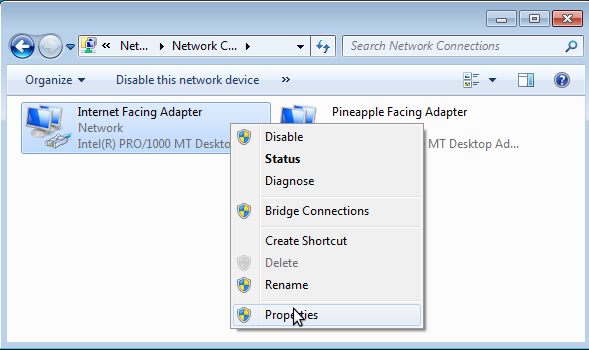
From the Sharing tab, check the box labeled Allow other network users to connect through this computer's Internet connection and click OK. You may need to select a network connection if there is more than one.
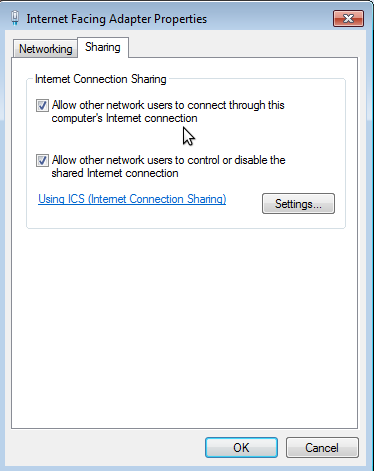
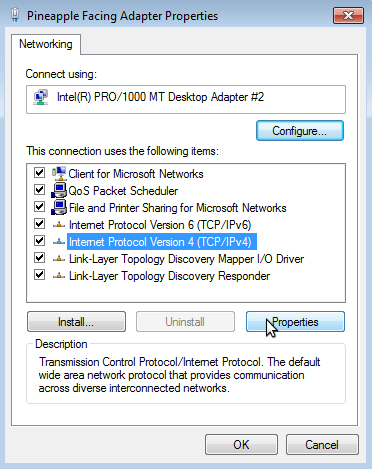
Next view the properties of the Pineapple-facing adapter.
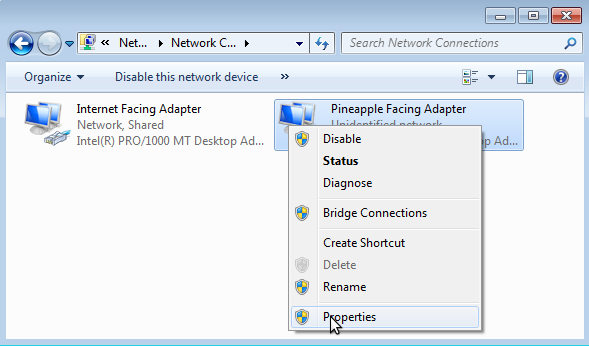
Select Internet Protocol Version 4 (TCP/IP) and select Properties.
Check Use the following IP address and specify 172.16.42.42 for the IP address and 255.255.255.0 for subnet. Leave the default gateway blank. Next check Use the following DNS server addresses and provide your preferred DNS server (e.g. Google's 8.8.8.8) and click OK then Close.
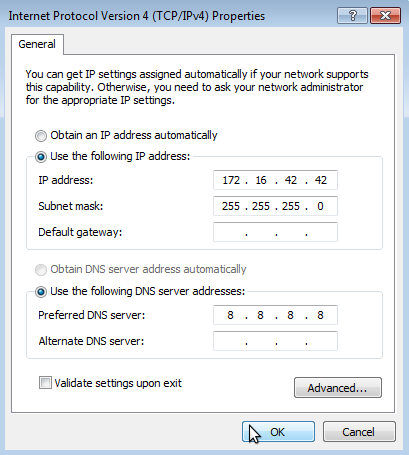
The WiFi Pineapple-facing and Internet-facing adapters have now been configured and Internet Connection Sharing has been enabled.
OSX ICS
How-to provided by http://champagneandsecurity.wordpress.com/2014/10/03/wifi-pineapple-and-mac-os-x-internet-sharing/
This one is for you Mac users out there that want to share your Mac's WiFi internet connection via the LAN cable to the WiFi Pineapple. Using the out of the box Internet Sharing option of your Mac doesn't work with the WiFi Pineapple. I had experienced it again, but never gave it any good look and switched to Linux. Today it frustrated me and I looked into it.
The problem with the setup is twofold:
- The Pineapple expects the 172.16.42.0 subnet, while OS X uses 192.168.2.0 when enabling internet sharing.
- The Pineapple expects the default gateway on 172.16.42.42 which is not a very logical address for a gateway. Now, we could change all these settings on the Pineapple to match the Mac's. But sometimes your situation may require different. I couldn't find any manual on the internet.
So here are the steps you need to do:
- Disconnect cables from Mac's LAN to Pineapple.
- On the Mac go to Internet Sharing and share your WiFi adapter to the LAN interfaces. Once enabled, disable it again and close the System Preference program. We need this step to write a default config file that we can alter.
- The config file that we need to alter is /Library/Preferences/SystemConfiguration/com.apple.nat.plist We need to add an option
SharingNetworkNumberStart 172.16.42.0. You can manually add this as a dict at the end of the file, or you can use the command:
sudo defaults write /Library/Preferences/SystemConfiguration/com.apple.nat NAT -dict-add SharingNetworkNumberStart 172.16.42.0
This makes sure that 172.16.42.0/24 is now used as the subnet for the sharing interface, and as such fixes our first problem.
4. Use the GUI again to start Internet Sharing.
5. Manually change the IP address used by the Mac's LAN interface with the command: ifconfig bridge100 172.16.42.42 netmask 255.255.255.0 up.
6. Now we need to change some DHCP options, because by default the DHCP server tells the clients to use gateway 172.16.42.1. We do this by altering file /etc/bootpd.plist. There are two mentions of 172.16.42.1 that we need to change into 172.16.42.42. We also need to adjust the pool range. Look for the <key>net_range</key> section. Alter the starting address to 172.16.42.43.
7. Find the PID of the bootpd process and give it a kill -HUP to reread its config file.
That's it. Now you can connect the LAN cable and enjoy internet from your Pineapple.
Android ICS
If your Android device supports USB Tethering it may be used to provide Internet access to the WiFi Pineapple. To enable, connect a USB cable between the Android device and the WiFi Pineapple. With the WiFi Pineapple powered on and a USB cable connected between both devices, tethering is now possible.
Since Android 2.3 (Gingerbread) devices, the USB tethering option will be found from the Settings menu (typically from Wireless and Networks, Tethering and Portable Hotspot). Simply check the box labeled USB Tethering.

In this configuration the WiFi Pineapple will obtain a new interface, usb0, and routing will automatically be adjusted to use the Android device as the WiFi Pineapple's default gateway. No configuration is necessary on the WiFi Pineapple. To discontinue use of Android USB Tethering, either disconnect the USB cable or uncheck the USB Tethering checkbox. The WiFi Pineapple will automatically disable the usb0 interface and reset the routing configuration to defaults.