mirror of
https://github.com/ciribob/DCS-CTLD.git
synced 2025-08-15 06:17:22 +00:00

227 lines
11 KiB
Markdown
227 lines
11 KiB
Markdown
# DCS-CTLD
|
|
Complete Troops and Logistics Deployment for DCS World
|
|
|
|
This script is a rewrite of some of the functionality of the original Complete Combat Troop Transport Script (CTTS) by Geloxo (http://forums.eagle.ru/showthread.php?t=108523), as well as adding new features.
|
|
|
|
The script supports:
|
|
|
|
* Troop Loading / Unloading via Radio Menu
|
|
* AI Units can also load and unload troops automatically
|
|
* Vehicle Loading / Unloading via Radio Menu for C-130 (Other large aircraft can easily be added) (https://www.digitalcombatsimulator.com/en/files/668878/?sphrase_id=1196134)
|
|
* You will need to download the modded version of the C-130 from here (JSGME Ready) that fixes the Radio Menu
|
|
* Coloured Smoke Marker Drops
|
|
* Extractable Soldier Spawn at a trigger zone
|
|
* Extractable soldier groups added via mission editor
|
|
* Unit construction using crates spawned at a logistics area and dropped via cargo sling
|
|
* HAWK AA System requires 3 separate and correct crates to build
|
|
* HAWK system can also be rearmed after construction by dropping another Hawk Launcher nearby and unpacking
|
|
* HMMWV TOW
|
|
* HMMWV MG
|
|
* Mortar
|
|
* MANPAD
|
|
* Pre loading of units into AI vehicles via a DO SCRIPT
|
|
|
|
A complete test mission is included.
|
|
|
|
You can also edit the CTLD.lua file to change some configuration options. Make sure you re-add the lua file to the mission after editing by deleting the trigger that loads the file, then readding the trigger and the DO SCRIPT FILE action.
|
|
|
|
##Setup in Mission Editor
|
|
|
|
###Script Setup
|
|
**This script requires MIST version 3.6 or above: https://github.com/mrSkortch/MissionScriptingTools**
|
|
|
|
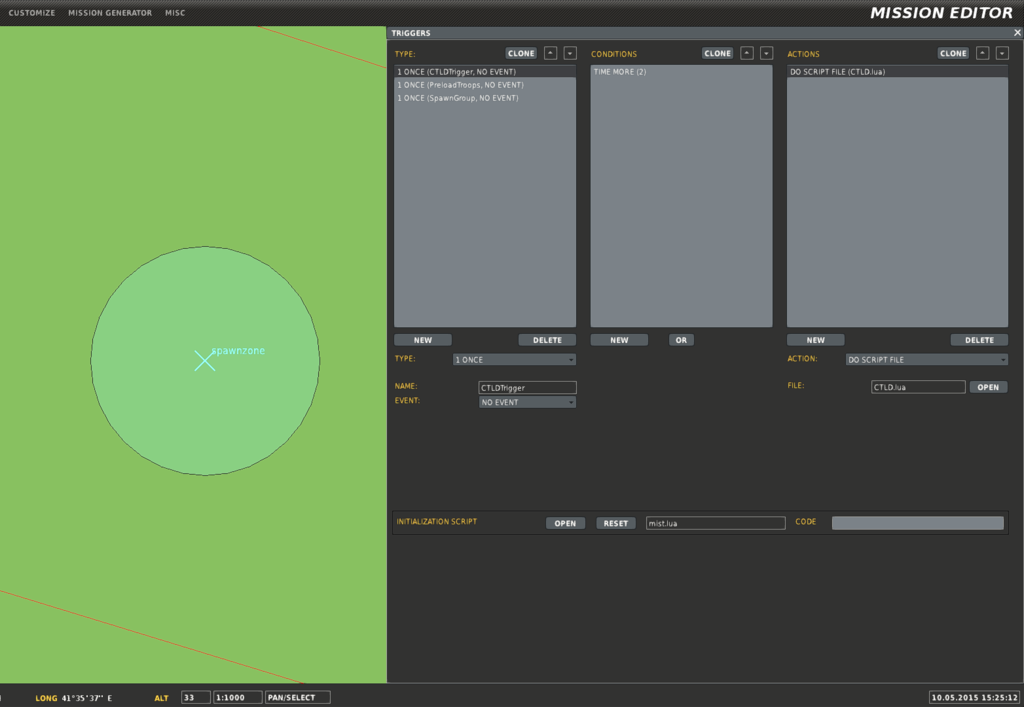
First make sure MIST is loaded, either as an Initialization Script for the mission or the first DO SCRIPT with a "TIME MORE" of 1. "TIME MORE" means run the actions after X seconds into the mission.
|
|
|
|
Load the CTLD a few seconds after MIST using a second trigger with a "TIME MORE" and a DO SCRIPT of CTLD.lua.
|
|
An error will be shown if MIST isn't loaded first.
|
|
|
|
An example is shown below:
|
|
|
|
|
|
|
|
###Other Script Functions
|
|
You can also preload troops into AI transports once the CTLD script has been loaded, instead of having the AI enter a pickup zone, using the code below where the parameters are:
|
|
* Pilot name of the unit
|
|
* number of troops / vehicles to load
|
|
* true means load with troops, false means load with vehicles
|
|
|
|
If you try to load vehicles into anything other than a unit listed in ```ctld.vehicleTransportEnabled```, they won't be able to deploy them.
|
|
```lua
|
|
ctld.preLoadTransport("helicargo1", 10,true)
|
|
```
|
|
|
|
You can also make existing mission editor groups extractable by adding their group name to the ```ctld.extractableGroups``` list
|
|
|
|
You can also spawn extractable infantry groups at a specified trigger zone using the code below.
|
|
|
|
The parameters are:
|
|
* group side (red or blue)
|
|
* number of troops to spawn
|
|
* the name of the trigger to spawn the extractable troops at
|
|
* the distance the troops should search for enemies on spawning in meters
|
|
|
|
```lua
|
|
ctld.spawnGroupAtTrigger("red", 10, "spawnTrigger", 1000)
|
|
```
|
|
or
|
|
```lua
|
|
ctld.spawnGroupAtTrigger("blue", 5, "spawnTrigger2", 2000)
|
|
```
|
|
|
|
|
|
###Pickup and Dropoff Zones Setup
|
|
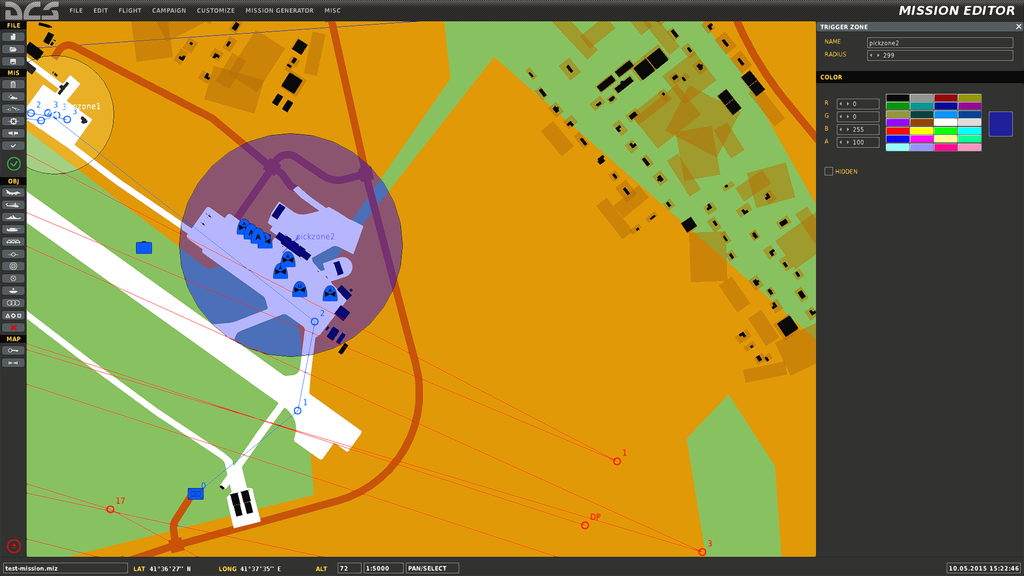
Pickup zones are used by transport aircraft and helicopters to load troops and vehicles. A transport unit must be inside of the radius of the trigger in order to load troops and vehicles.
|
|
The pickup zone needs to be named the same as one of the pickup zones in the ```ctld.pickupZones``` list or the list can be edited to match the name in the mission editor.
|
|
|
|
```lua
|
|
ctld.pickupZones = {
|
|
{ "pickzone1", "blue" },
|
|
{ "pickzone2", "blue" },
|
|
{ "pickzone3", "none" },
|
|
{ "pickzone4", "none" },
|
|
{ "pickzone5", "none" },
|
|
{ "pickzone6", "none" },
|
|
{ "pickzone7", "none" },
|
|
{ "pickzone8", "none" },
|
|
{ "pickzone9", "none" },
|
|
{ "pickzone10", "none" },
|
|
}
|
|
```
|
|
|
|
AI transport units will automatically load troops and vehicles when entering a pickup zone as long as they stay in the zone for a few seconds. They do not need to stop to load troops but Aircraft will need to be on the ground in order to load troops.
|
|
|
|
Example:
|
|
|
|
|
|
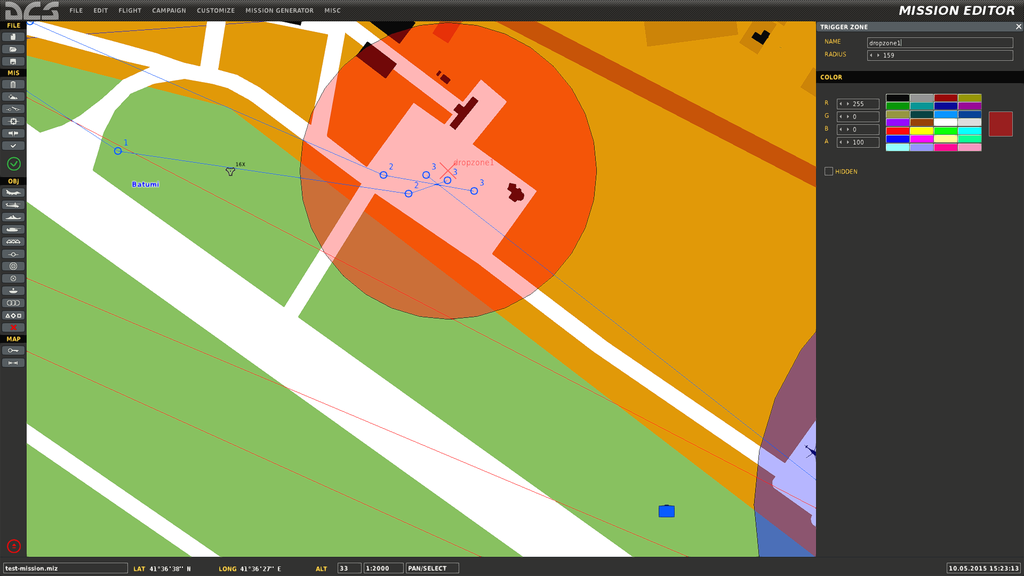
Dropoff zones are used by AI units to automatically unload any loaded troops or vehicles. This will occurr as long as the AI unit has some units onboard and stays in the radius of the zone for a few seconds and the zone is named in the ```ctld.dropoffZones``` list. Again units do not need to stop but aircraft need to be on the ground in order to unload the troops.
|
|
|
|
```lua
|
|
ctld.dropOffZones = {
|
|
{ "dropzone1", "red" },
|
|
{ "dropzone2", "blue" },
|
|
{ "dropzone3", "none" },
|
|
{ "dropzone4", "none" },
|
|
{ "dropzone5", "none" },
|
|
{ "dropzone6", "none" },
|
|
{ "dropzone7", "none" },
|
|
{ "dropzone8", "none" },
|
|
{ "dropzone9", "none" },
|
|
{ "dropzone10", "none" },
|
|
}
|
|
```
|
|
|
|
|
|
|
|
Smoke can be enabled or disabled individually for pickup or dropoff zones by editing the second column in the list.
|
|
|
|
Available colours are:
|
|
* ```"green"```
|
|
* ```"red"```
|
|
* ```"white"```
|
|
* ```"orange"```
|
|
* ```"blue"```
|
|
* ```"none"```
|
|
|
|
Smoke can be disabled for all zones regardless of the settings above using the option ```ctld.disableAllSmoke = true``` in the User Configuration part of the script.
|
|
|
|
###Transport Unit Setup
|
|
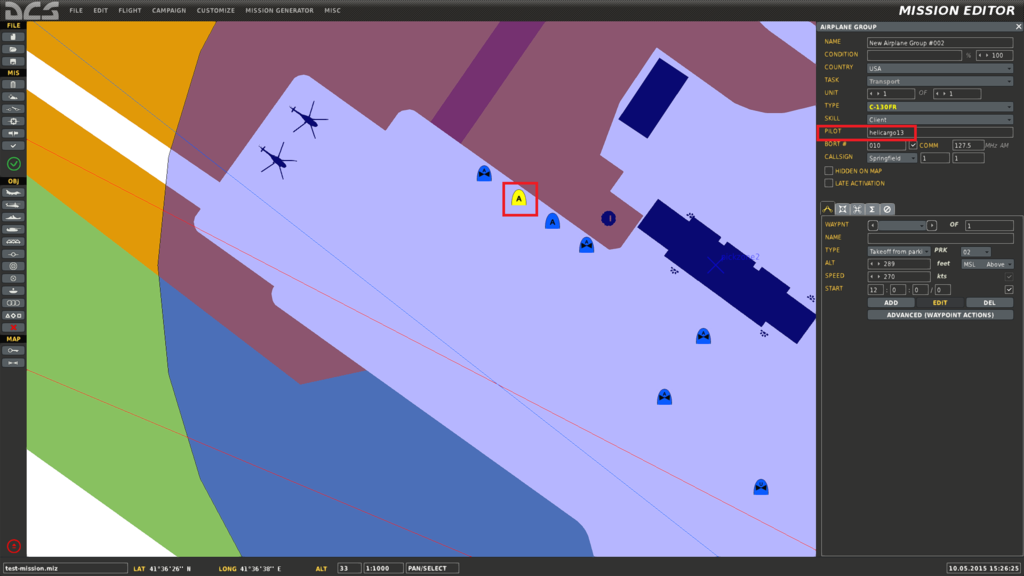
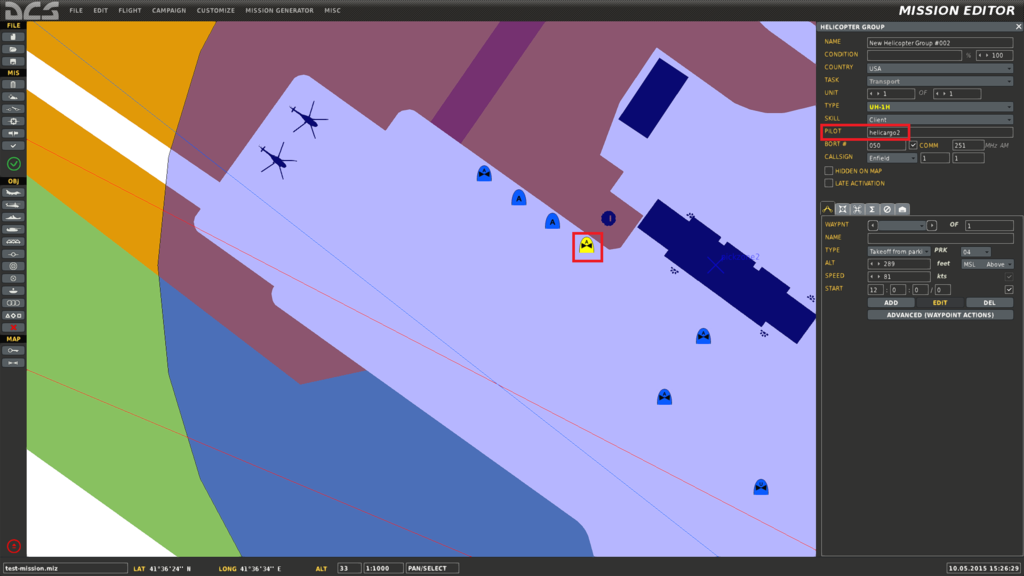
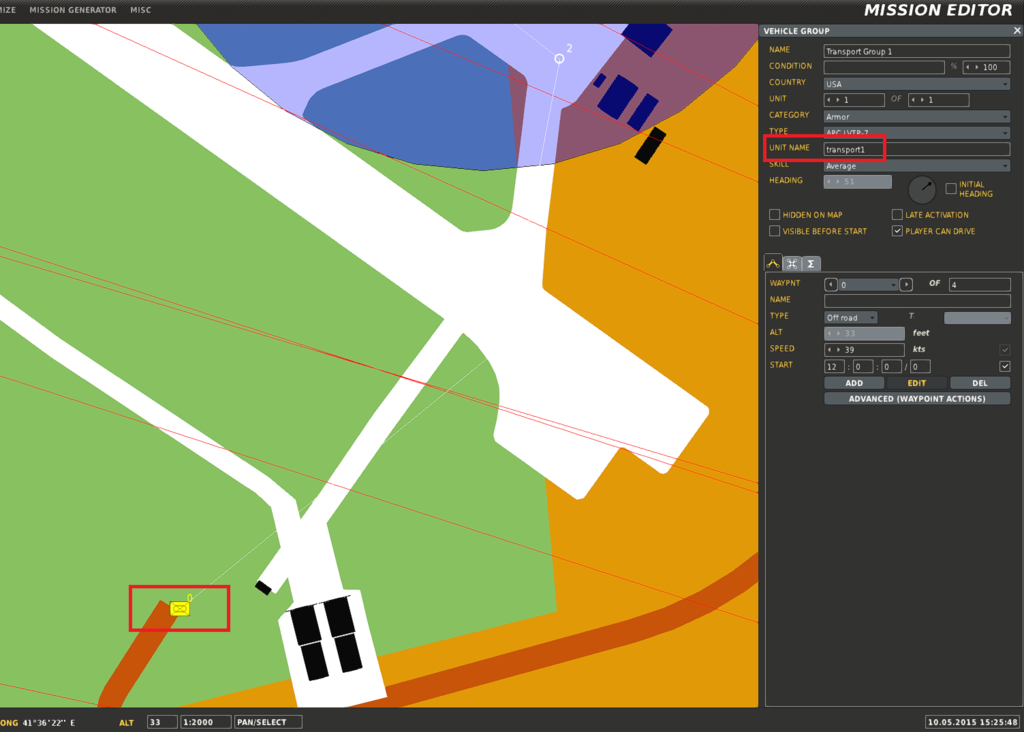
Any unit that you want to be able to transport troops needs to have the **"Pilot Name"** in the ```ctld.transportPilotNames``` list. **Player controlled transport units should be in a group of their own and be the only unit in the group, otherwise other players may have radio commands they shouldn't**. The group name isn't important and can be set to whatever you like. A snippet of the list is shown below.
|
|
|
|
If the unit is player controlled, troops have to be manually loaded when in a pickup zone, AI units will auto load troops in a pickup zone.
|
|
|
|
```lua
|
|
ctld.transportPilotNames = {
|
|
"helicargo1",
|
|
"helicargo2",
|
|
"helicargo3",
|
|
"helicargo4",
|
|
"helicargo5",
|
|
"helicargo6",
|
|
"helicargo7",
|
|
"helicargo8",
|
|
"helicargo9",
|
|
"helicargo10",
|
|
}
|
|
```
|
|
|
|
Example for C-130:
|
|
|
|
|
|
Example for Huey:
|
|
|
|
|
|
Example for AI APC:
|
|
|
|
|
|
|
|
###Logistic Setup
|
|
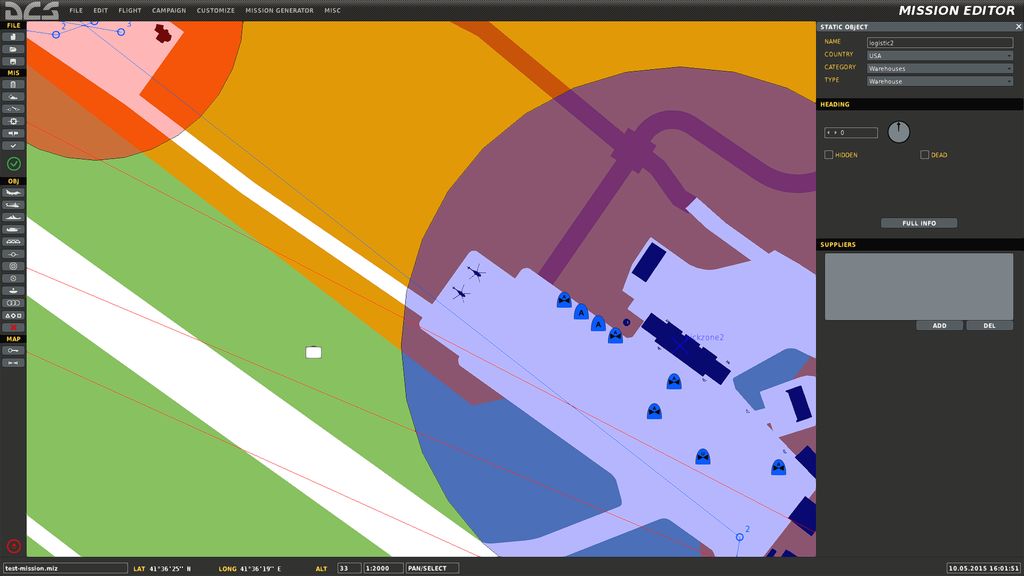
Logistic crates can also be spawned by Player-controlled Transport Helicopters, as long as they are near a friendly logistic unit listed in ```ctld.logisticUnits```. The distance that the heli's can spawn crates at can be configured at the top of the script. Any static object can be used for Logistics.
|
|
|
|
```lua
|
|
ctld.logisticUnits = {
|
|
"logistic1",
|
|
"logistic2",
|
|
"logistic3",
|
|
"logistic4",
|
|
"logistic5",
|
|
"logistic6",
|
|
"logistic7",
|
|
"logistic8",
|
|
"logistic9",
|
|
"logistic10",
|
|
}
|
|
|
|
```
|
|
|
|
Example:
|
|
|
|
|
|
|
|
#In Game
|
|
##Troop Loading and Unloading
|
|
|
|
Troops can be loaded and unloaded using the F10 Menu. Troops can only be loaded in a pickup zone but can be dropped anywhere you like. Troops dropped by transports can also be extracted by any transport unit using the radio menu, as long as you are close enough.
|
|
|
|
AI transports will display a message when they Auto load and deploy troops in the field. AI units won't pickup already deployed troops so as not to interfere with players.
|
|
|
|
The C130 gets an extra radio option for loading and deploying vehicles. By default the C130 can pickup and deploy a HMMWV TOW and HMMWV MG. This can be changed by editing ```ctld.vehiclesForTransport``` .
|
|
|
|
##Cargo Spawning and Sling Loading
|
|
|
|
Cargo can be spawned by transport helicopters if they are close enough to a friendly logistics unit using the F10 menu. Everything except the HAWK AA Missile system requires only one crate to build. Crates are always spawned off the nose of the unit that requested them. Sling cargo weight differs drastically depending on what you are sling loading. The Huey will need to have 20% fuel and no armaments in able to life a HMMWV TOW crate! The Mi-8 has a higher max lifting weight than a Huey.
|
|
|
|
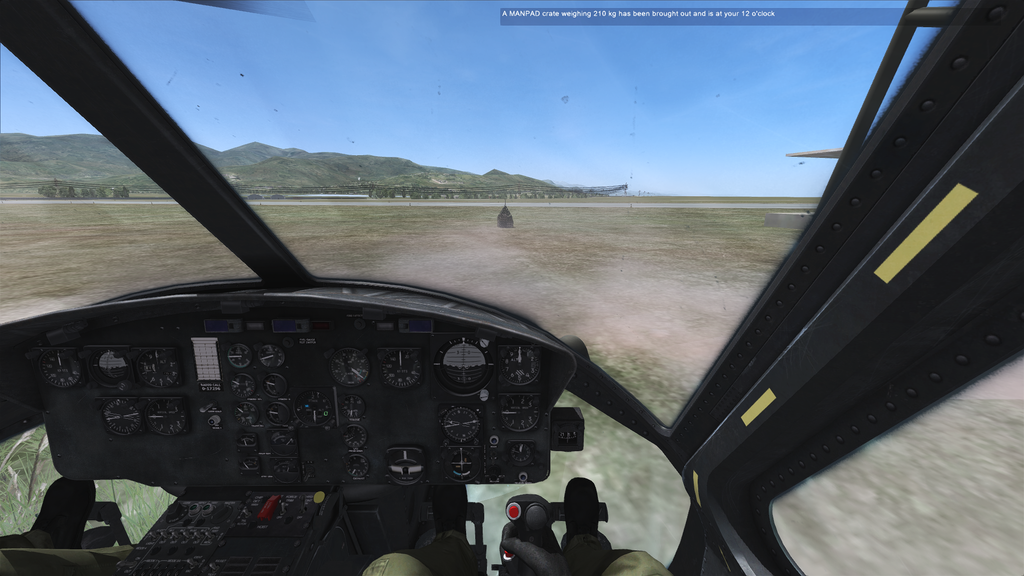
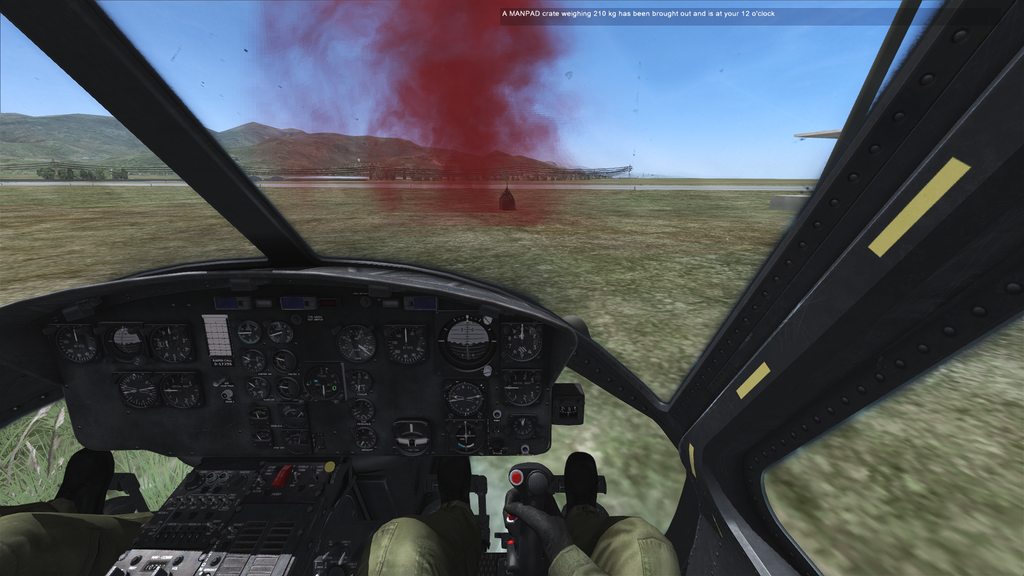
Once spawning the crate, to slingload the F6 menu needs to be used to select a cargo of the correct weight. If you've selected the right cargo RED smoke will appear and you can now sling load by hovering over the crate at a height of 15-30 feet or so.
|
|
|
|
* Huey rough max sling weight = 4000 lb / 1814.37 kg
|
|
* Mi-8 rough max sling weight = 6614 lb / 3000 kg
|
|
|
|
|
|
|
|
After selecting the right crate:
|
|
|
|
|
|
|
|
You can also list nearby crates that have yet to be unpacked using the F10 Crate Commands Menu and also unpack nearby crates using the same menu.
|
|
|
|
*Crate damage in the script is currently not implemented so as long as the crate isn't destroyed, you should always be able to unpack.*
|
|
|
|
##Crate Unpacking
|
|
Once you have sling loaded and successfully dropped your crate, you can land and list nearby crates that have yet to be unpacked using the F10 Crate Commands Menu, as well as unpack nearby crates using the same menu. Crates cannot be unpacked near a logistics unit.
|
|
|
|
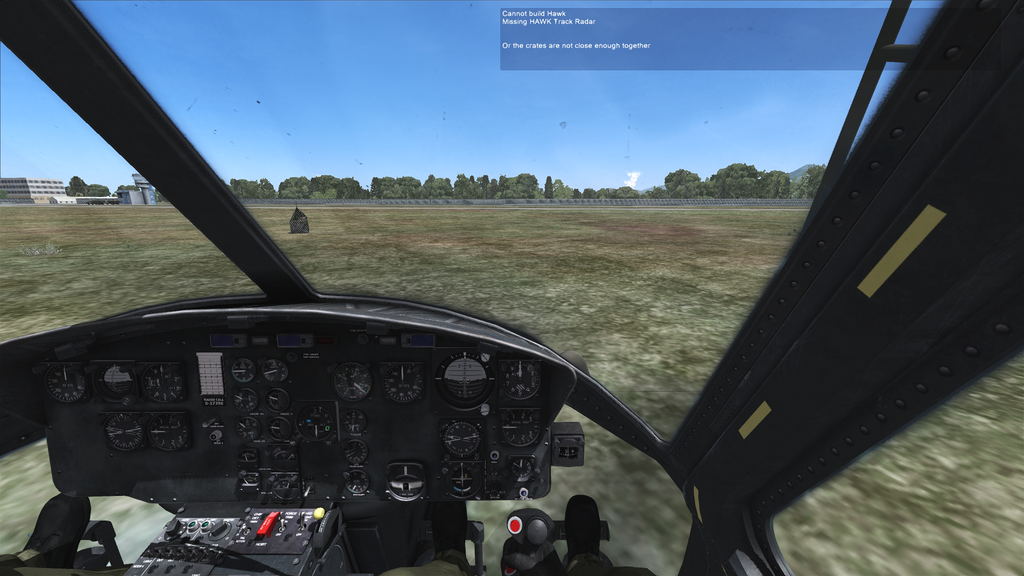
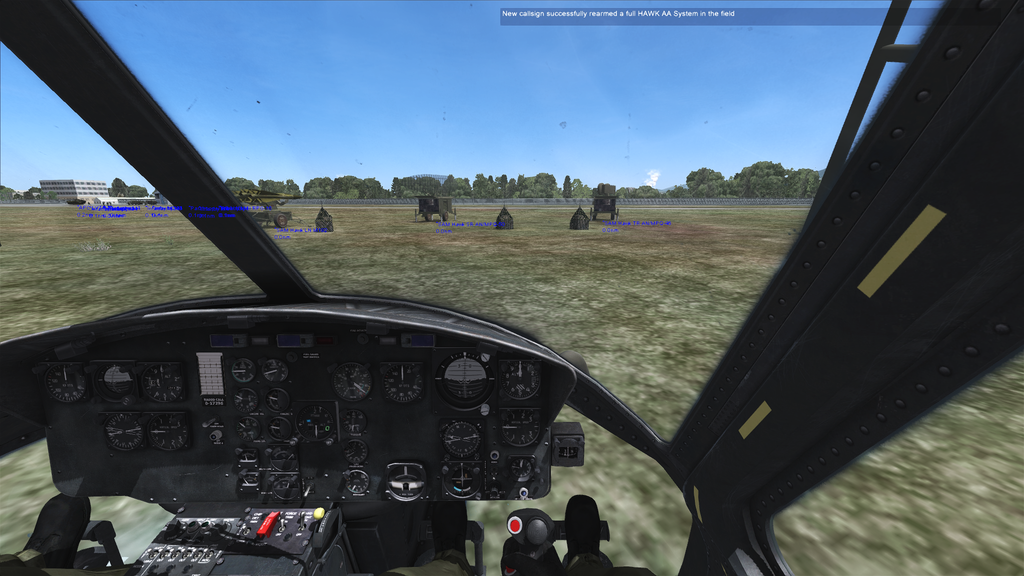
To build a HAWK AA system you will need to slingload all 3 parts - Launcher, Track Radar and Search Radar - and drop the crates within 100m of each other. If you try to build the system without all the parts, a message will list which parts are missing.
|
|
|
|
Parts Missing:
|
|
|
|
|
|
Example of Deployed HAWK System:
|
|
|
|
|
|
You can also rearm a fully deployed HAWK system by dropping another Launcher crate next to the completed system and unpacking it.
|
|
|
|
Rearming:
|
|

|
|
|
|
**Note: Once unpacked a crate will not disappear from the field or the F6 Menu, but will disappear from the F10 Nearby Crates list. There is currently no way to remove crates due to a DCS Bug AFAIK. This can make picking the right crate tricky, but by using the F10 List crates option, you can keep readjusting your position until you are close to the crate that you want and then it's trial and error, using the F6 menu to pick the right crate for sling loading. **
|
|
|
|
|