mirror of
https://github.com/ciribob/DCS-CTLD.git
synced 2025-08-15 06:17:22 +00:00
Compare commits
110 Commits
v1.71
...
202412.01R
| Author | SHA1 | Date | |
|---|---|---|---|

|
9ff68f6db5 | ||
|
|
416c69b410 | ||
|
|
8e4c2ea4f9 | ||
|
|
4979c7ab1e | ||
|
|
db40326c11 | ||
|
|
62e4566cfd | ||
|
|
5b6d3c3f6c | ||
|
|
a1f7663a4a | ||
|
|
4ede8063f5 | ||
|
|
42fd8e5889 | ||
|
|
77ec1f6d18 | ||
|
|
22f2efdce9 | ||
|
|
f3b35f2949 | ||
|
|
90e3432fd4 | ||
|
|
e266acaa95 | ||
|
|
504c1bb5f2 | ||
|
|
bc8d4d2cb9 | ||
|
|
07d37fb7d5 | ||
|
|
0520c824d8 | ||
|
|
08af1aff18 | ||
|
|
299af17841 | ||
|
|
f3797a1286 | ||
|
|
8406a743bc | ||
|
|
f96aa3424e | ||
|
|
fef17930b9 | ||
|
|
1e5a627d63 | ||
|
|
b1a50daa0b | ||
|
|
a3debfe000 | ||
|
|
4f15513fc8 | ||
|
|
5ed1511185 | ||
|
|
2828df2a10 | ||
|
|
b2448048b9 | ||
|
|
ce69af2843 | ||
|
|
419dae35fa | ||
|
|
ff76fddb1f | ||
|
|
d041a5cd19 | ||
|
|
1d1cd3bcae | ||
|
|
9dea93f96a | ||
|
|
e5a1871673 | ||
|
|
b9fa2f937e | ||
|
|
7edb23f555 | ||
|
|
ea762d4701 | ||
|
|
2fba4dba03 | ||
|
|
5831d1ab2d | ||
|
|
e33b78806b | ||
|
|
7f341df588 | ||
|
|
3b4da129fd | ||
|
|
09efd47acd | ||
|
|
8f9eba4801 | ||
|
|
6400becdfc | ||
|
|
518224a437 | ||
|
|
c1891a1a52 | ||
|
|
c4c8e15a32 | ||
|
|
ea30456493 | ||
|
|
a3c9d369d5 | ||
|
|
9b1cf75420 | ||
|
|
9517dabb0d | ||
|
|
b264bc2df0 | ||
|
|
2632845fd3 | ||
|
|
74526597e0 | ||
|
|
a961b7aaea | ||
|
|
240d2b6cbb | ||
|
|
65ab11aae1 | ||
|
|
c0f9115f41 | ||
|
|
14066646e0 | ||
|
|
f71649f4f0 | ||
|
|
046d51d86b | ||
|
|
166efc6160 | ||
|
|
17426bf487 | ||
|
|
b801853ef2 | ||
|
|
4b39a322a0 | ||
|
|
77b5f6008e | ||
|
|
ae0d68f5ef | ||
|
|
f70c6a7131 | ||
|
|
3717f0f11b | ||
|
|
1911c608bb | ||
|
|
1ddaabcfbb | ||
|
|
381a124a86 | ||
|
|
1a55b1d52e | ||
|
|
c48ab69e20 | ||
|
|
ec0cee3671 | ||
|
|
627b8323d4 | ||
|
|
853ae0e727 | ||
|
|
4ce0c1f656 | ||
|
|
821dc1e13c | ||
|
|
4b25289eb5 | ||
|
|
a9e52e07ea | ||
|
|
522b835985 | ||
|
|
0668e12c39 | ||
|
|
7837211c65 | ||
|
|
b5784811db | ||
|
|
a25abb32ef | ||
|
|
07291e3e89 | ||
|
|
a661fc5951 | ||
|
|
23fbba14f7 | ||
|
|
7101295603 | ||
|
|
9643e7b82b | ||
|
|
e50b7fd078 | ||
|
|
1ac63ffe53 | ||
|
|
9fe7020d6d | ||
|
|
3a36008990 | ||
|
|
c2fc64fd77 | ||
|
|
f603146472 | ||
|
|
1db8004f3e | ||
|
|
58731f3d84 | ||
|
|
ce2cb5fad0 | ||
|
|
71b54491fc | ||
|
|
7ca6af38fc | ||
|
|
844144f695 | ||
|
|
f12c67c5e0 |
3
.gitignore
vendored
Normal file
3
.gitignore
vendored
Normal file
@@ -0,0 +1,3 @@
|
||||
*.iml
|
||||
.idea/encodings.xml
|
||||
*.xml
|
||||
Binary file not shown.
Binary file not shown.
Binary file not shown.
274
README.md
274
README.md
@@ -3,6 +3,14 @@
|
||||
|
||||
Complete Troops and Logistics Deployment for DCS World
|
||||
|
||||
## License
|
||||
|
||||
This script has been created by Ciribob ([contact him on Discord](https://discordapp.com/users/204712384747536384)) and is now maintained by Zip ([contact him on Discord](https://discordapp.com/users/421317390807203850)) and the [VEAF Team](https://www.veaf.org).
|
||||
|
||||
It's open-source and free as in free beer (you don't have to pay to use it), and as in free of use (you can use it, modify it and publish a fork if you want, even make a commercial profit). Credit is appreciated where it's due.
|
||||
|
||||
We're always looking for help, please reach out to [Zip on Discord](https://discordapp.com/users/421317390807203850) if you want to participate in maintenance or development.
|
||||
|
||||
## Contents
|
||||
|
||||
This script is a rewrite of some of the functionality of the original Complete Combat Troop Transport Script (CTTS) by Geloxo (http://forums.eagle.ru/showthread.php?t=108523), as well as adding new features.
|
||||
@@ -101,6 +109,20 @@ You can also edit the CTLD.lua file to change some configuration options. Make s
|
||||
|
||||
## Setup in Mission Editor
|
||||
|
||||
### Test mission
|
||||
|
||||
You can use the `test-mission.miz` mission as a demonstration on how to use the CTLD script in a DCS mission.
|
||||
|
||||
This mission includes the CTLD script, a proper configuration, demonstration for some of the main features (including the "JTAC talk over the radio via SRS" functionality).
|
||||
|
||||
**Note to developers**: it's quite easy to set the loading of the CTLD script to dynamic, so you can make changes to the script, save it and simply reload the mission (left-shift + R) in the game to test the edits you made.
|
||||
|
||||
To do this, simply change the "Define loading mode" trigger (1) so that the condition reads "FLAG IS FALSE" (2), and edit the "DO SCRIPT" action (3) to replace the path with the path to the `CTLD.lua` file on your PC.
|
||||
|
||||
Optionaly, you can disable the STTS (text to speech over SRS) feature (4).
|
||||
|
||||
![dynamic_loading]
|
||||
|
||||
### Script Setup
|
||||
**This script requires MIST version 4.0.57 or above: https://github.com/mrSkortch/MissionScriptingTools**
|
||||
|
||||
@@ -120,7 +142,7 @@ An example is shown below:
|
||||
The script has lots of configuration options that can be used to further customise the behaviour.
|
||||
|
||||
**I have now changed the default behaviour of the script to use Simulated Cargo Sling instead of the Real Cargo Sling due to DCS Bugs causing crashing**
|
||||
To use the real cargo sling behaviour, set the ```ctld.slingLoad``` option to ```true```.
|
||||
To use the real cargo sling behaviour, set the `ctld.slingLoad` option to `true`.
|
||||
|
||||
|
||||
```lua
|
||||
@@ -130,10 +152,12 @@ To use the real cargo sling behaviour, set the ```ctld.slingLoad``` option to ``
|
||||
-- ************************************************************************
|
||||
ctld.staticBugFix = true -- When statics are destroyed, DCS Crashes. Set this to FALSE when this bug is fixed or if you want to use REAL sling loads :)
|
||||
|
||||
ctld.disableAllSmoke = false -- if true, all smoke is diabled at pickup and drop off zones regardless of settings below. Leave false to respect settings below
|
||||
ctld.disableAllSmoke = false -- if true, all smoke is disabled at pickup and drop off zones regardless of settings below. Leave false to respect settings below
|
||||
|
||||
ctld.hoverPickup = true -- if set to false you can load crates with the F10 menu instead of hovering...!
|
||||
|
||||
ctld.loadCrateFromMenu = false -- if set to true, you can load crates with the F10 menu OR hovering, in case of using choppers and planes for example.
|
||||
|
||||
ctld.enableCrates = true -- if false, Helis will not be able to spawn or unpack crates so will be normal CTTS
|
||||
ctld.slingLoad = false -- if false, crates can be used WITHOUT slingloading, by hovering above the crate, simulating slingloading but not the weight...
|
||||
-- There are some bug with Sling-loading that can cause crashes, if these occur set slingLoad to false
|
||||
@@ -206,7 +230,7 @@ ctld.AASystemLimitBLUE = 20 -- Blue side limit
|
||||
|
||||
```
|
||||
|
||||
To change what units can be dropped from crates modify the spawnable crates section. An extra parameter, ```cratesRequired = NUMBER``` can be added so you need more than one crate to build a unit. This parameter cannot be used for the HAWK, BUK or KUB system as that is already broken into 3 crates. You can also specify the coalition side so RED and BLUE have different crates to drop. If the parameter is missing the crate will appear for both sides.
|
||||
To change what units can be dropped from crates modify the spawnable crates section. An extra parameter, `cratesRequired = NUMBER` can be added so you need more than one crate to build a unit. This parameter cannot be used for the HAWK, BUK or KUB system as that is already broken into 3 crates. You can also specify the coalition side so RED and BLUE have different crates to drop. If the parameter is missing the crate will appear for both sides.
|
||||
|
||||
```--``` in lua means ignore this line :)
|
||||
|
||||
@@ -280,7 +304,7 @@ Example showing what happens if you dont have enough crates:
|
||||
|
||||
### Pickup and Dropoff Zones Setup
|
||||
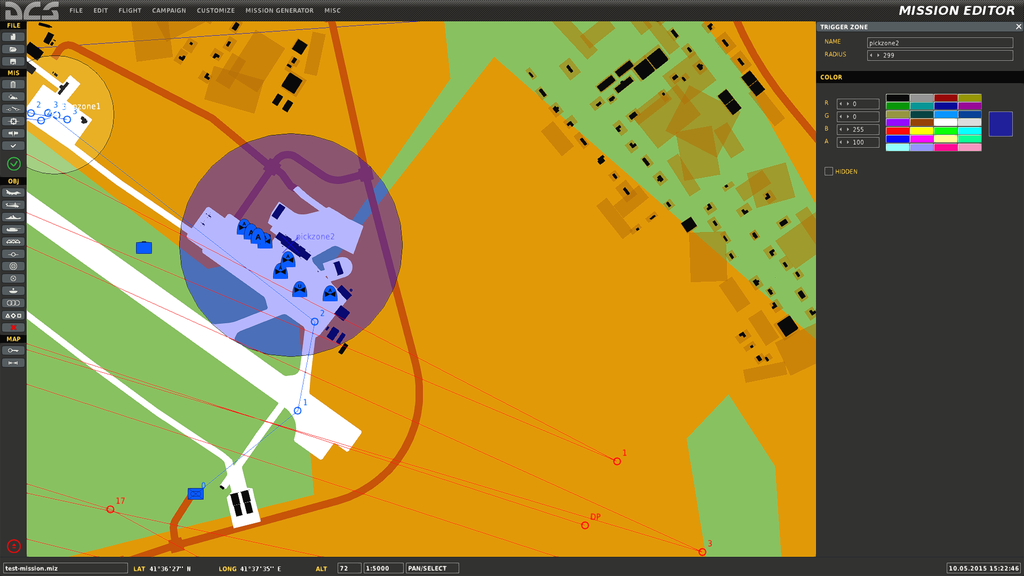
Pickup zones are used by transport aircraft and helicopters to load troops and vehicles. A transport unit must be inside of the radius of the trigger and the right side (RED or BLUE or BOTH) in order to load troops and vehicles.
|
||||
The pickup zone needs to be named the same as one of the pickup zones in the ```ctld.pickupZones``` list or the list can be edited to match the name in the mission editor.
|
||||
The pickup zone needs to be named the same as one of the pickup zones in the `ctld.pickupZones` list or the list can be edited to match the name in the mission editor.
|
||||
|
||||
Pickup Zones can be configured to limit the number of vehicle or troop groups that can be loaded. To add a limit, edit the 3rd parameter to be any number greater than 0 as shown below.
|
||||
|
||||
@@ -319,19 +343,19 @@ ctld.pickupZones = {
|
||||
|
||||
AI transport units will automatically load troops and vehicles when entering a pickup zone as long as they stay in the zone for a few seconds. They do not need to stop to load troops but Aircraft will need to be on the ground in order to load troops.
|
||||
|
||||
The number of troops that can be loaded from a pickup zone can be configured by changing ```ctld.numberOfTroops``` which by default is 10. You can also enable troop groups to have RPGs and Stingers / Iglas by ```ctld.spawnRPGWithCoalition``` and ```ctld.spawnStinger```.
|
||||
The number of troops that can be loaded from a pickup zone can be configured by changing `ctld.numberOfTroops` which by default is 10. You can also enable troop groups to have RPGs and Stingers / Iglas by `ctld.spawnRPGWithCoalition` and `ctld.spawnStinger`.
|
||||
|
||||
If ```ctld.numberOfTroops``` is 6 or more than the soldier group will consist of:
|
||||
If `ctld.numberOfTroops` is 6 or more than the soldier group will consist of:
|
||||
|
||||
- 2 MG Soldiers with M249s or Paratroopers with AKS-74
|
||||
- 2 RPG Soldiers (only on the RED side if ```ctld.spawnRPGWithCoalition``` is ```false```
|
||||
- 2 RPG Soldiers (only on the RED side if `ctld.spawnRPGWithCoalition` is `false`
|
||||
- 1 Igla / Stinger
|
||||
- The rest will be standard soldiers
|
||||
|
||||
Example:
|
||||
|
||||
|
||||
Dropoff zones are used by AI units to automatically unload any loaded troops or vehicles. This will occur as long as the AI unit has some units onboard and stays in the radius of the zone for a few seconds and the zone is named in the ```ctld.dropoffZones``` list. Again units do not need to stop but aircraft need to be on the ground in order to unload the troops.
|
||||
Dropoff zones are used by AI units to automatically unload any loaded troops or vehicles. This will occur as long as the AI unit has some units onboard and stays in the radius of the zone for a few seconds and the zone is named in the `ctld.dropoffZones` list. Again units do not need to stop but aircraft need to be on the ground in order to unload the troops.
|
||||
|
||||
If your dropoff zone isn't working, make sure the 3rd parameter, the coalition side, is set correctly.
|
||||
|
||||
@@ -357,14 +381,14 @@ ctld.dropOffZones = {
|
||||
Smoke can be enabled or disabled individually for pickup or dropoff zones by editing the second column in the list.
|
||||
|
||||
Available colours are:
|
||||
* ```"green"```
|
||||
* ```"red"```
|
||||
* ```"white"```
|
||||
* ```"orange"```
|
||||
* ```"blue"```
|
||||
* ```"none"```
|
||||
* `"green"`
|
||||
* `"red"`
|
||||
* `"white"`
|
||||
* `"orange"`
|
||||
* `"blue"`
|
||||
* `"none"`
|
||||
|
||||
Smoke can be disabled for all zones regardless of the settings above using the option ```ctld.disableAllSmoke = true``` in the User Configuration part of the script.
|
||||
Smoke can be disabled for all zones regardless of the settings above using the option `ctld.disableAllSmoke = true` in the User Configuration part of the script.
|
||||
|
||||
### Waypoint Zones Setup
|
||||
|
||||
@@ -392,17 +416,24 @@ ctld.wpZones = {
|
||||
Smoke can be enabled or disabled individually for waypoiny zones exactly the same as Pickup and Dropoff zones by editing the second column in the list.
|
||||
|
||||
The available colours are:
|
||||
* ```"green"```
|
||||
* ```"red"```
|
||||
* ```"white"```
|
||||
* ```"orange"```
|
||||
* ```"blue"```
|
||||
* ```"none"```
|
||||
* `"green"`
|
||||
* `"red"`
|
||||
* `"white"`
|
||||
* `"orange"`
|
||||
* `"blue"`
|
||||
* `"none"`
|
||||
|
||||
Smoke can be disabled for all zones regardless of the settings above using the option ```ctld.disableAllSmoke = true``` in the User Configuration part of the script.
|
||||
Smoke can be disabled for all zones regardless of the settings above using the option `ctld.disableAllSmoke = true` in the User Configuration part of the script.
|
||||
|
||||
### Transport Unit Setup
|
||||
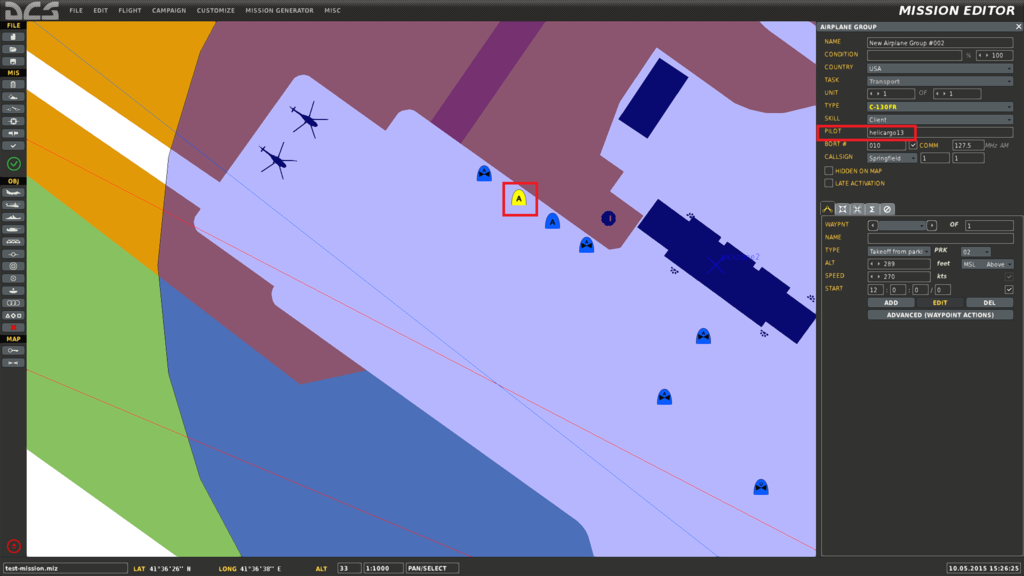
Any unit that you want to be able to transport troops needs to have the **"Pilot Name"** in the ```ctld.transportPilotNames``` list. **Player controlled transport units should be in a group of their own and be the only unit in the group, otherwise other players may have radio commands they shouldn't**. The group name isn't important and can be set to whatever you like. A snippet of the list is shown below.
|
||||
|
||||
Since the December 2024 release, it's now possible to have transport pilots automatically registered with CTLD (no need to use `ctld.transportPilotNames` anymore). We use the DCS events to dynamically add the CTLD features and radio menu to human players embarking in a CTLD-enabled aircraft.
|
||||
|
||||
If you want to use this feature, there are two steps:
|
||||
- enable `ctld.addPlayerAircraftByType` (set it to `true`)
|
||||
- (optional) edit the aircraft types list `ctld.aircraftTypeTable` to add the DCS aircrafts you want to auto-register
|
||||
|
||||
Any unit that you want to be able to transport troops needs to have the **"Pilot Name"** in the `ctld.transportPilotNames` list. **Player controlled transport units should be in a group of their own and be the only unit in the group, otherwise other players may have radio commands they shouldn't**. The group name isn't important and can be set to whatever you like. A snippet of the list is shown below.
|
||||
|
||||
If the unit is player controlled, troops have to be manually loaded when in a pickup zone, AI units will auto load troops in a pickup zone.
|
||||
|
||||
@@ -419,7 +450,7 @@ ctld.transportPilotNames = {
|
||||
"helicargo9",
|
||||
"helicargo10",
|
||||
}
|
||||
```
|
||||
`
|
||||
|
||||
Example for C-130:
|
||||
|
||||
@@ -432,7 +463,7 @@ Example for AI APC:
|
||||
|
||||
|
||||
### Logistic Setup
|
||||
Logistic crates can also be spawned by Player-controlled Transport Helicopters, as long as they are near a friendly logistic unit listed in ```ctld.logisticUnits```. The distance that the heli's can spawn crates at can be configured at the top of the script. Any static object can be used for Logistics.
|
||||
Logistic crates can also be spawned by Player-controlled Transport Helicopters, as long as they are near a friendly logistic unit listed in `ctld.logisticUnits`. The distance that the heli's can spawn crates at can be configured at the top of the script. Any static object can be used for Logistics.
|
||||
|
||||
```lua
|
||||
ctld.logisticUnits = {
|
||||
@@ -462,12 +493,13 @@ You can also preload troops into AI transports once the CTLD script has been loa
|
||||
* number of troops / vehicles to load
|
||||
* true means load with troops, false means load with vehicles
|
||||
|
||||
If you try to load vehicles into anything other than a unit listed in ```ctld.vehicleTransportEnabled```, they won't be able to deploy them.
|
||||
If you try to load vehicles into anything other than a unit listed in `ctld.vehicleTransportEnabled`, they won't be able to deploy them.
|
||||
```lua
|
||||
ctld.preLoadTransport("helicargo1", 10,true)
|
||||
```
|
||||
|
||||
#### Create Extractable Groups without Pickup Zone
|
||||
You can also make existing mission editor groups extractable by adding their group name to the ```ctld.extractableGroups``` list
|
||||
You can also make existing mission editor groups extractable by adding their group name to the `ctld.extractableGroups` list
|
||||
|
||||
#### Spawn Extractable Groups without Pickup Zone at a Trigger Zone
|
||||
You can also spawn extractable infantry groups at a specified trigger zone using the code below.
|
||||
@@ -481,38 +513,44 @@ The parameters are:
|
||||
```lua
|
||||
ctld.spawnGroupAtTrigger("red", 10, "spawnTrigger", 1000)
|
||||
```
|
||||
|
||||
or
|
||||
|
||||
```lua
|
||||
ctld.spawnGroupAtTrigger("blue", 5, "spawnTrigger2", 2000)
|
||||
```
|
||||
|
||||
or
|
||||
|
||||
```lua
|
||||
ctld.spawnGroupAtTrigger("blue", {mg=1,at=2,aa=3,inf=4,mortar=5}, "spawnTrigger2", 2000)
|
||||
-- Spawns 1 machine gun, 2 anti tank, 3 anti air, 4 standard soldiers and 5 mortars
|
||||
|
||||
```
|
||||
|
||||
#### Spawn Extractable Groups without Pickup Zone at a Point
|
||||
You spawn extractable infantry groups at a specified Vec3 point ```{x=1,y=2,z=3}``` using the code below.
|
||||
You spawn extractable infantry groups at a specified Vec3 point `{x=1,y=2,z=3}` using the code below.
|
||||
|
||||
The parameters are:
|
||||
* group side (red or blue)
|
||||
* number of troops to spawn OR Group Description
|
||||
* Vec3 point ```{x=1,y=2,z=3}```
|
||||
* Vec3 point `{x=1,y=2,z=3}`
|
||||
* the distance the troops should search for enemies on spawning in meters
|
||||
|
||||
```lua
|
||||
ctld.spawnGroupAtPoint("red", 10, {x=1,y=2,z=3}, 1000)
|
||||
```
|
||||
|
||||
or
|
||||
|
||||
```lua
|
||||
ctld.spawnGroupAtPoint("blue", 5, {x=1,y=2,z=3}, 2000)
|
||||
```
|
||||
|
||||
or
|
||||
|
||||
```lua
|
||||
ctld.spawnGroupAtPoint("blue", {mg=1,at=2,aa=3,inf=4,mortar=5}, {x=1,y=2,z=3}, 2000)
|
||||
-- Spawns 1 machine gun, 2 anti tank, 3 anti air, 4 standard soldiers and 5 mortars
|
||||
|
||||
```
|
||||
|
||||
#### Activate / Deactivate Pickup Zone
|
||||
@@ -521,7 +559,9 @@ You can activate and deactivate a pickup zone as shown below. When a zone is act
|
||||
```lua
|
||||
ctld.activatePickupZone("pickzone3")
|
||||
```
|
||||
|
||||
or
|
||||
|
||||
```lua
|
||||
ctld.deactivatePickupZone("pickzone3")
|
||||
```
|
||||
@@ -532,11 +572,8 @@ In the configuration of a pickup zone / pickup ship you can limit the number of
|
||||
Call the function below to add or remove groups from the remaining groups at a zone.
|
||||
|
||||
```lua
|
||||
|
||||
ctld.changeRemainingGroupsForPickupZone("pickup1", 5) -- adds 5 groups for zone or ship pickup1
|
||||
|
||||
ctld.changeRemainingGroupsForPickupZone("pickup1", -3) -- remove 3 groups for zone or ship pickup1
|
||||
|
||||
```
|
||||
|
||||
#### Activate / Deactivate Waypoint Zone
|
||||
@@ -545,7 +582,9 @@ You can activate and deactivate a waypoint zone as shown below. When a waypoint
|
||||
```lua
|
||||
ctld.activateWaypointZone("wpzone1")
|
||||
```
|
||||
|
||||
or
|
||||
|
||||
```lua
|
||||
ctld.deactivateWaypointZone("wpzone1")
|
||||
```
|
||||
@@ -572,11 +611,11 @@ ctld.unloadInProximityToEnemy("helicargo1",500) --distance is 500
|
||||
```
|
||||
|
||||
#### Create Radio Beacon at Zone
|
||||
A radio beacon can be spawned at any zone by adding a Trigger Once with a Time More set to any time after the CTLD script has been loaded and a DO SCRIPT action of ```ctld.createRadioBeaconAtZone("beaconZone","red", 1440,"Waypoint 1")```
|
||||
A radio beacon can be spawned at any zone by adding a Trigger Once with a Time More set to any time after the CTLD script has been loaded and a DO SCRIPT action of `ctld.createRadioBeaconAtZone("beaconZone","red", 1440,"Waypoint 1")`
|
||||
|
||||
Where ```"beaconZone"``` is the name of a Trigger Zone added using the mission editor, ```"red"``` is the side to add the beacon for and ```1440``` the time in minutes for the beacon to broadcast for. An optional parameter can be added at the end which can be used to name the beacon and the name will appear in the beacon list.
|
||||
Where `"beaconZone"` is the name of a Trigger Zone added using the mission editor, `"red"` is the side to add the beacon for and `1440` the time in minutes for the beacon to broadcast for. An optional parameter can be added at the end which can be used to name the beacon and the name will appear in the beacon list.
|
||||
|
||||
```ctld.createRadioBeaconAtZone("beaconZoneBlue","blue", 20)``` will create a beacon at trigger zone named ```"beaconZoneBlue"``` for the Blue coalition that will last 20 minutes and have an auto generated name.
|
||||
`ctld.createRadioBeaconAtZone("beaconZoneBlue","blue", 20)` will create a beacon at trigger zone named `"beaconZoneBlue"` for the Blue coalition that will last 20 minutes and have an auto generated name.
|
||||
|
||||
Spawned beacons will broadcast on HF/FM, UHF and VHF until their battery runs out and can be used by most aircraft for ADF. The frequencies used on each frequency will be random.
|
||||
|
||||
@@ -587,24 +626,24 @@ An extact zone is a zone where troops (not vehicles) can be dropped by transport
|
||||
|
||||
When troops are dropped, the troops disappear and the number of troops dropped added to the flag number configured by the function. This means you can make a trigger such that 10 troops have to be rescued and dropped at the extract zone, and when this happens you can trigger another action.
|
||||
|
||||
An Extraction zone can be created by adding a Trigger Once with a Time More set to any time after the CTLD script has been loaded and a DO SCRIPT action of ```ctld.createExtractZone("extractzone1", 2, -1)```
|
||||
Where ```"extractzone1"``` is the name of a Trigger Zone added using the mission editor, ```2``` is the flag where we want the total number of troops dropped in a zone added and ```-1``` the smoke colour.
|
||||
An Extraction zone can be created by adding a Trigger Once with a Time More set to any time after the CTLD script has been loaded and a DO SCRIPT action of `ctld.createExtractZone("extractzone1", 2, -1)`
|
||||
Where `"extractzone1"` is the name of a Trigger Zone added using the mission editor, `2` is the flag where we want the total number of troops dropped in a zone added and `-1` the smoke colour.
|
||||
|
||||
The settings for smoke are: Green = 0 , Red = 1, White = 2, Orange = 3, Blue = 4, NO SMOKE = -1
|
||||
|
||||
An extract zone can be removed by using DO SCRIPT action of ```ctld.removeExtractZone("extractzone1", 2)```. Where again ```"extractzone1"``` is the name of a Trigger Zone added using the mission editor, ```2``` is the flag
|
||||
An extract zone can be removed by using DO SCRIPT action of `ctld.removeExtractZone("extractzone1", 2)`. Where again `"extractzone1"` is the name of a Trigger Zone added using the mission editor, `2` is the flag
|
||||
|
||||
The smoke for the extract zone will take up to 5 minutes to disappate.
|
||||
|
||||
#### Count Extractable UNITS in zone
|
||||
You can count the number of extractable UNITS in a zone using: ```ctld.countDroppedUnitsInZone(_zone, _blueFlag, _redFlag)``` as a DO SCRIPT of a CONTINUOUS TRIGGER.
|
||||
You can count the number of extractable UNITS in a zone using: `ctld.countDroppedUnitsInZone(_zone, _blueFlag, _redFlag)` as a DO SCRIPT of a CONTINUOUS TRIGGER.
|
||||
|
||||
Where ```_zone``` is the zone name, ```_blueFlag``` is the flag to store the count of Blue units in and ```_redFlag``` is the flag to store the count of red units in
|
||||
Where `_zone` is the zone name, `_blueFlag` is the flag to store the count of Blue units in and `_redFlag` is the flag to store the count of red units in
|
||||
|
||||
#### Count Extractable GROUPS in zone
|
||||
You can count the number of extractable GROUPS in a zone using: ```ctld.countDroppedGroupsInZone(_zone, _blueFlag, _redFlag)``` as a DO SCRIPT of a CONTINUOUS TRIGGER.
|
||||
You can count the number of extractable GROUPS in a zone using: `ctld.countDroppedGroupsInZone(_zone, _blueFlag, _redFlag)` as a DO SCRIPT of a CONTINUOUS TRIGGER.
|
||||
|
||||
Where ```_zone``` is the zone name, ```_blueFlag``` is the flag to store the count of Blue groups in and ```_redFlag``` is the flag to store the count of red groups in
|
||||
Where `_zone` is the zone name, `_blueFlag` is the flag to store the count of Blue groups in and `_redFlag` is the flag to store the count of red groups in
|
||||
|
||||
#### Create Crate Drop Zone
|
||||
A crate drop zone is a zone where the number of crates in a zone in counted every 5 seconds and the current amount stored in a flag specified by the script.
|
||||
@@ -615,9 +654,9 @@ The flag number can be used to trigger other actions added using the mission edi
|
||||
|
||||
**Crates added by the Mission Editor can now be used as well!**
|
||||
|
||||
A crate drop zone can be added to any zone by adding a Trigger Once with a Time More set to any time after the CTLD script has been loaded and a DO SCRIPT action of ```ctld.cratesInZone("crateZone",1)```
|
||||
A crate drop zone can be added to any zone by adding a Trigger Once with a Time More set to any time after the CTLD script has been loaded and a DO SCRIPT action of `ctld.cratesInZone("crateZone",1)`
|
||||
|
||||
Where ```"crateZone"``` is the name of a Trigger Zone added using the mission editor, and ```1``` is the number of the flag where the current number of crates in the zone will be stored.
|
||||
Where `"crateZone"` is the name of a Trigger Zone added using the mission editor, and `1` is the number of the flag where the current number of crates in the zone will be stored.
|
||||
|
||||
#### Spawn Sling loadable crate at a Zone
|
||||
You can spawn a sling loadable crate at a specified trigger zone using the code below:
|
||||
@@ -629,10 +668,13 @@ The parameters are:
|
||||
```lua
|
||||
ctld.spawnCrateAtZone("blue", 500, "crateSpawnTrigger") -- spawns a BLUE coalition HMMWV at the trigger zone "crateSpawnTrigger"
|
||||
```
|
||||
|
||||
or
|
||||
|
||||
```lua
|
||||
ctld.spawnCrateAtZone("red", 500, "crateSpawnTrigger") -- spawns a RED coalition HMMWV at the trigger zone "crateSpawnTrigger"
|
||||
```
|
||||
|
||||
#### Spawn Sling loadable crate at a Point
|
||||
You can spawn a sling loadable crate at a specified point using the code below:
|
||||
|
||||
@@ -650,7 +692,7 @@ ctld.spawnCrateAtPoint("blue",500, {x=20, y=10,z=20}) -- spawns a RED coalition
|
||||
#### JTAC Automatic Targeting and Laser
|
||||
This script has been merged with https://github.com/ciribob/DCS-JTACAutoLaze . JTACs can either be deployed by Helicopters and configured with the options in the script or pre added to the mission. By default each side can drop 5 JTACs.
|
||||
|
||||
The JTAC Script configuration is shown below and can easily be disabled using the ```ctld.JTAC_dropEnabled``` option.
|
||||
The JTAC Script configuration is shown below and can easily be disabled using the `ctld.JTAC_dropEnabled` option.
|
||||
|
||||
```lua
|
||||
-- ***************** JTAC CONFIGURATION *****************
|
||||
@@ -659,39 +701,68 @@ ctld.JTAC_LIMIT_BLUE = 10 -- max number of JTAC Crates for the BLUE Side
|
||||
|
||||
ctld.JTAC_dropEnabled = true -- allow JTAC Crate spawn from F10 menu
|
||||
|
||||
ctld.JTAC_maxDistance = 4000 -- How far a JTAC can "see" in meters (with Line of Sight)
|
||||
ctld.JTAC_maxDistance = 10000 -- How far a JTAC can "see" in meters (with Line of Sight)
|
||||
|
||||
ctld.JTAC_smokeOn_RED = true -- enables marking of target with smoke for RED forces
|
||||
ctld.JTAC_smokeOn_BLUE = true -- enables marking of target with smoke for BLUE forces
|
||||
ctld.JTAC_smokeOn_RED = true -- enables automatic marking of target with smoke for RED forces
|
||||
ctld.JTAC_smokeOn_BLUE = true -- enables automatic marking of target with smoke for BLUE forces
|
||||
|
||||
ctld.JTAC_smokeColour_RED = 4 -- RED side smoke colour -- Green = 0 , Red = 1, White = 2, Orange = 3, Blue = 4
|
||||
ctld.JTAC_smokeColour_BLUE = 1 -- BLUE side smoke colour -- Green = 0 , Red = 1, White = 2, Orange = 3, Blue = 4
|
||||
|
||||
ctld.JTAC_jtacStatusF10 = false -- enables F10 JTAC Status menu
|
||||
ctld.JTAC_smokeOffset_x = 0.0 -- distance in the X direction from target to smoke (meters)
|
||||
ctld.JTAC_smokeOffset_y = 2.0 -- distance in the Y direction from target to smoke (meters)
|
||||
ctld.JTAC_smokeOffset_z = 0.0 -- distance in the z direction from target to smoke (meters)
|
||||
|
||||
ctld.JTAC_location = false -- shows location of target in JTAC message
|
||||
ctld.JTAC_jtacStatusF10 = true -- enables F10 JTAC Status menu
|
||||
|
||||
ctld.JTAC_lock = "all" -- "vehicle" OR "troop" OR "all" forces JTAC to only lock vehicles or troops or all ground units
|
||||
ctld.JTAC_location = true -- shows location of target in JTAC message
|
||||
ctld.location_DMS = false -- shows coordinates as Degrees Minutes Seconds instead of Degrees Decimal minutes
|
||||
|
||||
ctld.JTAC_lock = "all" -- "vehicle" OR "troop" OR "all" forces JTAC to only lock vehicles or troops or all ground units
|
||||
|
||||
ctld.JTAC_allowStandbyMode = true -- Allow players to toggle lasing on/off
|
||||
ctld.JTAC_laseSpotCorrections = true -- Allow players to toggle on/off the JTAC leading it's target, taking into account current wind conditions and the speed of the target (particularily useful against moving heavy armor)
|
||||
ctld.JTAC_allowSmokeRequest = true -- Allow players to request a smoke on target (temporary)
|
||||
ctld.JTAC_allow9Line = true -- Allow players to ask for a 9Line (individual) for a specific JTAC's target
|
||||
```
|
||||
|
||||
To make a unit deployed from a crate into a JTAC unit, add the type to the ```ctld.jtacUnitTypes``` list.
|
||||
To make a unit deployed from a crate into a JTAC unit, add the type to the `ctld.jtacUnitTypes` list.
|
||||
|
||||
The script allows a JTAC to mark and hold an IR and Laser point on a target allowing TGP's to lock onto the lase and ease of target location using NV Goggles.
|
||||
|
||||
The JTAC will automatically switch targets when a target is destroyed or goes out of Line of Sight.
|
||||
The JTAC will automatically switch targets when a target is destroyed or goes out of Line of Sight. Alternatively, a target list is available to chose from for each JTAC.
|
||||
|
||||
The JTACs can be configured globally to target only vehicles or troops or all ground targets.
|
||||
|
||||
JTACs can also be asked to put smoke on target, give out 9-Lines, to toggle lasing on/off and compensate the laser spot position for target movement and local wind.
|
||||
|
||||
*** NOTE: LOS doesn't include buildings or tree's... Sorry! ***
|
||||
|
||||
The script can also be useful in daylight by enabling the JTAC to mark enemy positions with Smoke. The JTAC will only move the smoke to the target every 5 minutes (to stop a huge trail of smoke markers) unless the target is destroyed, in which case the new target will be marked straight away with smoke. There is also an F10 menu option for units allowing the JTAC(s) to report their current status but if a JTAC is down it won't report in.
|
||||
The script can also be useful in daylight by enabling the JTAC to automatically mark enemy positions with Smoke. The JTAC will only move the smoke to the target every 5 minutes (to stop a huge trail of smoke markers) unless the target is destroyed, in which case the new target will be marked straight away with smoke. There is also an F10 menu to get the status of all JTACs, access the target lists and options for each JTAC (such as toggling lasing on/off or requesting a smoke manually). Do note that if a JTAC is down it won't report in or have it's own menu for targets and options. JTACs also do not overlap each other so the target lists do not include already lased targets.
|
||||
|
||||
To add JTACS to the mission using the editor place a JTAC unit on the map putting each JTAC in it's own group containing only itself and no
|
||||
The automatic smokes will be offset from the target by the distances declared in the `ctld.JTAC_smokeOffset_*` constants. Requested smokes will be put close but not on target.
|
||||
|
||||
In practice, this is what the F10 radio menu for JTACs looks like :
|
||||
|
||||

|
||||
|
||||
You can see the "JTAC Status" command and the Selection Lists for each JTAC. Those look like :
|
||||
|
||||

|
||||
|
||||
Each target type within LOS of the JTAC and not already being lased (by any JTAC) is listed. Quantity is indicated. There is also the Action menu which looks like :
|
||||
|
||||

|
||||
|
||||
This will allow you to act on the behavior of the JTAC or make requests. These items get updated every minute or so to reflect current configuration, same for the target list.
|
||||
|
||||
*** NOTE: Please be patient with the JTAC menu, wait at least 10 seconds between commands. If a spurious command is triggered, wait the same 10 seconds and try again. Sorry for this inconvenience. ***
|
||||
|
||||
To add JTACs or AFACs to the mission using the editor place a JTAC/AFAC unit on the map putting each JTAC/AFAC in it's own group containing only itself and no
|
||||
other units. Name the group something easy to remember e.g. JTAC1 and make sure the JTAC units have a unique name which must
|
||||
not be the same as the group name. The editor should do this for you but be careful if you copy and paste.
|
||||
|
||||
Run the code below as a DO SCRIPT at the start of the mission, or after a delay if you prefer to activate a mission JTAC.
|
||||
Run the code below as a DO SCRIPT at the start of the mission, or after a delay if you prefer to activate a mission JTAC or AFAC.
|
||||
|
||||
**JTAC units deployed by unpacking a crate will automatically activate and begin searching for targets immediately.**
|
||||
|
||||
@@ -706,31 +777,37 @@ You can also override global settings set in the script like so:
|
||||
```lua
|
||||
ctld.JTACAutoLase('JTAC1', 1688, false,"all")
|
||||
```
|
||||
|
||||
This means no smoke marks for this JTAC and it will target all ground troops
|
||||
|
||||
```lua
|
||||
ctld.JTACAutoLase('JTAC1', 1688, true,"vehicle")
|
||||
```
|
||||
|
||||
This smoke marks for this JTAC and it will target ONLY ground vehicles
|
||||
|
||||
```lua
|
||||
ctld.JTACAutoLase('JTAC1', 1688, true,"troop")
|
||||
```
|
||||
|
||||
This means smoke marks are enabled for this JTAC and it will target ONLY ground troops
|
||||
|
||||
```lua
|
||||
ctld.JTACAutoLase('JTAC1', 1688, true,"troop",1)
|
||||
```
|
||||
|
||||
This means smoke marks are enabled for this JTAC and it will target ONLY ground troops AND smoke colour will be Red
|
||||
|
||||
```lua
|
||||
ctld.JTACAutoLase('JTAC1', 1688, true,"troop",0)
|
||||
```
|
||||
|
||||
This means smoke marks are enabled for this JTAC and it will target ONLY ground troops AND smoke colour will be Green
|
||||
|
||||
```lua
|
||||
ctld.JTACAutoLase('JTAC1', 1688, true,"all", 4)
|
||||
```
|
||||
|
||||
This means no smoke marks for this JTAC and it will target all ground troops AND mark with Blue smoke
|
||||
|
||||
Smoke colours are: Green = 0 , Red = 1, White = 2, Orange = 3, Blue = 4
|
||||
@@ -740,6 +817,19 @@ the mission but there can be a delay of up to 30 seconds after activation for th
|
||||
|
||||
You can also change the **name of a unit*** (unit, not group) to include "**hpriority**" to make it high priority for the JTAC, or "**priority**" to set it to be medium priority. JTAC's will prioritize targets within view by first marking hpriority targets, then priority targets, and finally all others. This works seemlessly with the all/vehicle/troop functionality as well. In this way you can have them lase SAMS, then AAA, then armor, or any other order you decide is preferable.
|
||||
|
||||
If the `DCS-SimpleTextToSpeech.lua` script is loaded (you'll find it [here](https://github.com/ciribob/DCS-SimpleTextToSpeech)), and configured (i.e. the `STTS.DIRECTORY`, `STTS.SRS_PORT` and optionaly the `STTS.GOOGLE_CREDENTIALS` variables are set), the JTAC can talk over SRS.
|
||||
|
||||
To do this, you can specify the _radio parameter when calling ctld.JTACAutoLase like in this example :
|
||||
|
||||
```lua
|
||||
ctld.JTACAutoLase('JTAC1', 1688, true,"all", 4, { freq = "251.50", mod = "AM", name = "JTAC one" })
|
||||
```
|
||||
|
||||
If you don't use the _radio parameter, CTLD will compute a FM frequency based on the laser designator code : 30Mhz + [second figure of the code] + [last two figures of the code] * 0.05.
|
||||
For example, if the laser code is *1688*, the frequency will be *40.40Mhz*.
|
||||
|
||||
JTAC frequency is available through the "JTAC Status" radio menu
|
||||
|
||||
# In Game
|
||||
## Troop Loading and Unloading
|
||||
|
||||
@@ -747,11 +837,11 @@ Troops can be loaded and unloaded using the F10 Menu. Troops can only be loaded
|
||||
|
||||
AI transports will display a message when they Auto load and deploy troops in the field. AI units won't pickup already deployed troops so as not to interfere with players.
|
||||
|
||||
The C130 / IL-76 gets an extra radio option for loading and deploying vehicles. By default the C-130 can pickup and deploy a HMMWV TOW and HMMWV MG. This can be changed by editing ```ctld.vehiclesForTransportBLUE``` for BLUE coalition forces or ```ctld.vehiclesForTransportRED``` for RED coalition forces.
|
||||
The C130 / IL-76 gets an extra radio option for loading and deploying vehicles. By default the C-130 can pickup and deploy a HMMWV TOW and HMMWV MG. This can be changed by editing `ctld.vehiclesForTransportBLUE` for BLUE coalition forces or `ctld.vehiclesForTransportRED` for RED coalition forces.
|
||||
|
||||
The C-130 / IL-76 can also load and unload FOB crates from a Logistics area, see FOB Construction for more details.
|
||||
|
||||
Different Troop Groups can be loaded from a pickup zone. The ```ctld.loadableGroups``` list can be modified if you want to change the loadable groups.
|
||||
Different Troop Groups can be loaded from a pickup zone. The `ctld.loadableGroups` list can be modified if you want to change the loadable groups.
|
||||
|
||||
```lua
|
||||
|
||||
@@ -762,6 +852,7 @@ Different Troop Groups can be loaded from a pickup zone. The ```ctld.loadableGro
|
||||
-- at is RPG-16
|
||||
-- aa is Stinger or Igla
|
||||
-- mortar is a 2B11 mortar unit
|
||||
-- jtac is a JTAC soldier, which will use JTACAutoLase
|
||||
-- You must add a name to the group for it to work
|
||||
-- You can also add an optional coalition side to limit the group to one side
|
||||
-- for the side - 2 is BLUE and 1 is RED
|
||||
@@ -772,7 +863,26 @@ ctld.loadableGroups = {
|
||||
{name = "Mortar Squad", mortar = 6 },
|
||||
-- {name = "Mortar Squad Red", inf = 2, mortar = 5, side =1 }, --would make a group loadable by RED only
|
||||
}
|
||||
```
|
||||
|
||||
The infantry groups have a weight, too. It is calculated based on the soldiers' roles, and the weight of their kit
|
||||
- Every soldier weights between 90% and 120% of ctld.SOLDIER_WEIGHT, and they all carry a backpack and their helmet (ctld.KIT_WEIGHT)
|
||||
- Standard grunts have a rifle and ammo (ctld.RIFLE_WEIGHT)
|
||||
- AA soldiers have a MANPAD tube (ctld.MANPAD_WEIGHT)
|
||||
- Anti-tank soldiers have a RPG and a rocket (ctld.RPG_WEIGHT)
|
||||
- Machine gunners have the squad MG and 200 bullets (ctld.MG_WEIGHT)
|
||||
- JTAC have the laser sight, radio and binoculars (ctld.JTAC_WEIGHT)
|
||||
- Mortar servants carry their tube and a few rounds (ctld.MORTAR_WEIGHT)
|
||||
|
||||
```lua
|
||||
ctld.SOLDIER_WEIGHT = 80 -- kg, will be randomized between 90% and 120%
|
||||
ctld.KIT_WEIGHT = 20 -- kg
|
||||
ctld.RIFLE_WEIGHT = 5 -- kg
|
||||
ctld.MANPAD_WEIGHT = 18 -- kg
|
||||
ctld.RPG_WEIGHT = 7.6 -- kg
|
||||
ctld.MG_WEIGHT = 10 -- kg
|
||||
ctld.MORTAR_WEIGHT = 26 -- kg
|
||||
ctld.JTAC_WEIGHT = 15 -- kg
|
||||
```
|
||||
|
||||
|
||||
@@ -780,8 +890,14 @@ ctld.loadableGroups = {
|
||||
|
||||
Cargo can be spawned by transport helicopters if they are close enough to a friendly logistics unit using the F10 menu. Crates are always spawned off the nose of the unit that requested them.
|
||||
|
||||
Since the December 2024 release, it's now possible to configure CTLD to allow *all* the loading modes simultaneously:
|
||||
- conventional (DCS) if using an aircraft listed in `ctld.dynamicCargoUnits`,
|
||||
- sling loading (DCS) if `ctld.slingLoad` is set to `true`,
|
||||
- simulated sling loading (CTLD) if `ctld.hoverPickup` is set to `true`,
|
||||
- simplified loading (CTLD) if `ctld.loadCrateFromMenu` is set to `true`
|
||||
|
||||
### Simulated Sling Loading
|
||||
If ```ctld.slingLoad = false``` then Simulated Sling Loading will be used. This option is now the default due to DCS crashes caused by Sling Loading on multiplayer. Simulated sling loads will not add and weight to your helicopter when loaded.
|
||||
If `ctld.slingLoad = false` then Simulated Sling Loading will be used. This option is now the default due to DCS crashes caused by Sling Loading on multiplayer. Simulated sling loads will not add and weight to your helicopter when loaded.
|
||||
|
||||
To pickup a Sling Load, spawn the cargo you want and hover above the crate for 10 seconds. There is no need to select which crate you want to pickup. Status messages will tell you if you are too high or too low. If the countdown stops, it means you are no longer hovering in the correct position and the timer will reset.
|
||||
|
||||
@@ -806,7 +922,7 @@ Once you've loaded the crate, fly to where you want to drop it and drop using th
|
||||
|
||||
Once on the ground unpack as normal using the CTLD Commands Menu - CTLD->CTLD Commands->Unpack Crate
|
||||
|
||||
**Note: You can also set ```ctld.hoverPickup = false``` so you can load crates using the F10 menu instead of Hovering. **
|
||||
**Note: You can also set `ctld.hoverPickup = false` so you can load crates using the F10 menu instead of Hovering; or keep `ctld.hoverPickup = true` and set `ctld.loadCrateFromMenu = true` so you can load the crates by hovering OR from the F10 menu**
|
||||
|
||||
### Real Sling Loading
|
||||
|
||||
@@ -828,13 +944,17 @@ You can also list nearby crates that have yet to be unpacked using the F10 CTLD
|
||||
*Crate damage in the script is currently not implemented so as long as the crate isn't destroyed, you should always be able to unpack.*
|
||||
|
||||
**If you experience crashes with Sling-loading, such as a game crash when shotdown, you can use the simulated sling-load behaviour instead to work around the DCS Bugs.**
|
||||
To use the simulated behaviour, set the ```ctld.slingLoad``` option to ```false```.
|
||||
To use the simulated behaviour, set the `ctld.slingLoad` option to `false`.
|
||||
The simulated Sling Loading will use a Generator static object instead of a crate and you just hover above it for 10 seconds to load it. No Need to use the F6 menu to first select the crate.
|
||||
|
||||
The crate can then be dropped using the CTLD Commands section of the Radio menu. Make sure you're not too high when the crate is dropped or it will be destroyed!
|
||||
|
||||
Unfortunately there is no way to simulate the added weight of the Simulated Sling Load.
|
||||
|
||||
### DCS conventional loading
|
||||
|
||||
For aircrafts capable of this feature (CH-47 only for now, see `ctld.dynamicCargoUnits`), pilots can load and unload crates in their hold via the conventional DCS "rearm and refuel" dialog.
|
||||
|
||||
## Crate Unpacking
|
||||
Once you have sling loaded and successfully dropped your crate, you can land and list nearby crates that have yet to be unpacked using the F10 Crate Commands Menu, as well as unpack nearby crates using the same menu. Crates cannot be unpacked near a logistics unit.
|
||||
|
||||
@@ -880,7 +1000,7 @@ You will get a position as well as a UHF / VHF frequency that the Huey / Mi-8 (V
|
||||
## Radio Beacon Deployment
|
||||
Radio beacons can be dropped by any transport unit and there is no enforced limit on the number of beacons that can be dropped. There is however a finite limit of available frequencies so don't drop too many or you won't be able to distinguise the beacons from one another.
|
||||
|
||||
By default a beacon will disappear after 15 minutes, when it's battery runs out. FOB beacons will never run out power. You can give the beacon more time by editing the ```ctld.deployedBeaconBattery``` setting.
|
||||
By default a beacon will disappear after 15 minutes, when it's battery runs out. FOB beacons will never run out power. You can give the beacon more time by editing the `ctld.deployedBeaconBattery` setting.
|
||||
|
||||
To deploy a beacon you must be on the ground and then use the F10 radio menu. The beacons are under the Radio Beacons section in CTLD. Once a beacon has been dropped, the frequencies can also be listed using the CTLD - > Radio Beacons -> List Radio Beacons command.
|
||||
|
||||
@@ -969,15 +1089,17 @@ end)
|
||||
|
||||
Below is a complete list of all the "actions" plus the data that is sent through. For more information its best to check the CTLD Code to see more details of the arguments.
|
||||
|
||||
* ```{unit = "Unit that did the action", unloaded = "DCS Troops Group", action = "dropped_troops"}```
|
||||
* ```{unit = "Unit that did the action", unloaded = "DCS Vehicles Group", action = "dropped_vehicles"}```
|
||||
* ```{unit = "Unit that did the action", unloaded = "List of picked up vehicles", action = "load_vehicles"}```
|
||||
* ```{unit = "Unit that did the action", unloaded = "List of picked up troops", action = "load_troops"}```
|
||||
* ```{unit = "Unit that did the action", unloaded = "List of dropped troops", action = "unload_troops_zone"}```
|
||||
* ```{unit = "Unit that did the action", unloaded = "List of dropped vehicles", action = "unload_vehicles_zone"}```
|
||||
* ```{unit = "Unit that did the action", extracted = "DCS Troops Group", action = "extract_troops"}```
|
||||
* ```{unit = "Unit that did the action", extracted = "DCS Vehicles Group", action = "extract_vehicles"}```
|
||||
* ```{unit = "Unit that did the action",position = "Point of FOB", action = "fob" }```
|
||||
* ```{unit = "Unit that did the action",crate = "Crate Details", spawnedGroup = "Group rearmed by crate", action = "rearm"}```
|
||||
* ```{unit = "Unit that did the action",crate = "Crate Details", spawnedGroup = "Group spawned by crate", action = "unpack"}```
|
||||
* ```{unit = "Unit that did the action",crate = "Crate Details", spawnedGroup = "Group repaired by crate", action = "repair"}```
|
||||
* `{unit = "Unit that did the action", unloaded = "DCS Troops Group", action = "dropped_troops"}`
|
||||
* `{unit = "Unit that did the action", unloaded = "DCS Vehicles Group", action = "dropped_vehicles"}`
|
||||
* `{unit = "Unit that did the action", unloaded = "List of picked up vehicles", action = "load_vehicles"}`
|
||||
* `{unit = "Unit that did the action", unloaded = "List of picked up troops", action = "load_troops"}`
|
||||
* `{unit = "Unit that did the action", unloaded = "List of dropped troops", action = "unload_troops_zone"}`
|
||||
* `{unit = "Unit that did the action", unloaded = "List of dropped vehicles", action = "unload_vehicles_zone"}`
|
||||
* `{unit = "Unit that did the action", extracted = "DCS Troops Group", action = "extract_troops"}`
|
||||
* `{unit = "Unit that did the action", extracted = "DCS Vehicles Group", action = "extract_vehicles"}`
|
||||
* `{unit = "Unit that did the action",position = "Point of FOB", action = "fob" }`
|
||||
* `{unit = "Unit that did the action",crate = "Crate Details", spawnedGroup = "Group rearmed by crate", action = "rearm"}`
|
||||
* `{unit = "Unit that did the action",crate = "Crate Details", spawnedGroup = "Group spawned by crate", action = "unpack"}`
|
||||
* `{unit = "Unit that did the action",crate = "Crate Details", spawnedGroup = "Group repaired by crate", action = "repair"}`
|
||||
|
||||
[dynamic_loading]: trigger-dynamic-loading.png
|
||||
BIN
test-fob.miz
BIN
test-fob.miz
Binary file not shown.
Binary file not shown.
Binary file not shown.
BIN
test-mission.miz
BIN
test-mission.miz
Binary file not shown.
BIN
trigger-dynamic-loading.png
Normal file
BIN
trigger-dynamic-loading.png
Normal file

Binary file not shown.
|
After Width: | Height: | Size: 79 KiB |
Reference in New Issue
Block a user